Notes / Design
A revolution in building UI/UX with AI
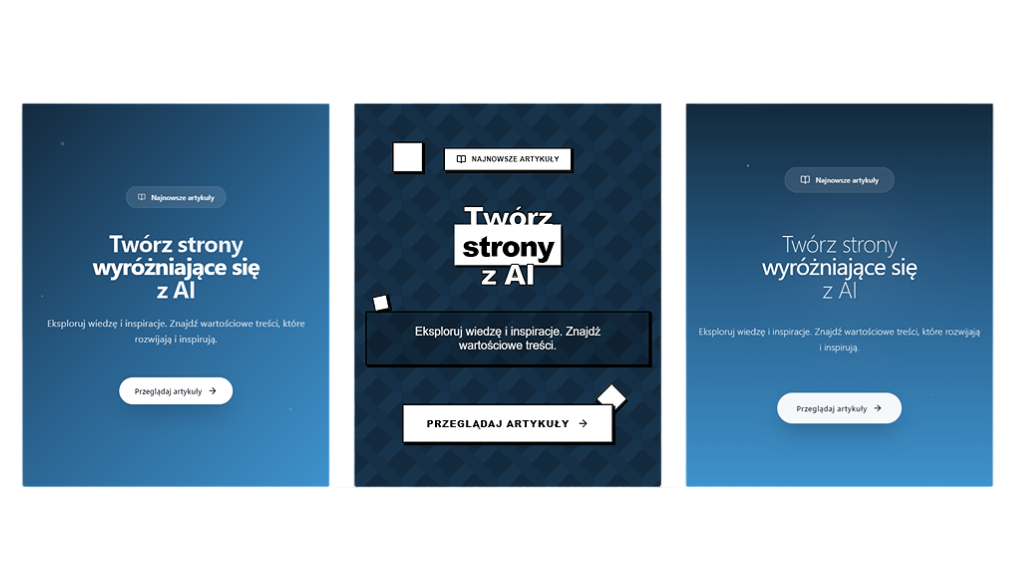
Superdesign is the answer to the biggest shortcomings of coding assistants. Instead of generating a single version of UI code, it lets you create and preview many variants at once. This way you can quickly compare the design, layout and style of different mockups, and then pick the one that best fits your project. It's a revolution that enables much faster and more efficient work, eliminating the need to fix the code over and over again.
· 4 min read
Introduction
Coding assistants such as Cursor or Claude Code have revolutionized the way we work. Generating code has never been easier. All it takes is a prompt, and a new element appears in the app right away. While this is incredibly convenient, have you ever wondered whether it's really the optimal solution?
We usually generate one version and then fix it — which is often time-consuming and not very efficient. We lack the ability to compare several ideas at once to quickly pick the best solution.
What is Superdesign?
Superdesign is the answer to this problem. It's an interface and a set of instructions that integrate with coding assistants and VS Code, allowing you to generate and preview several objects at once.
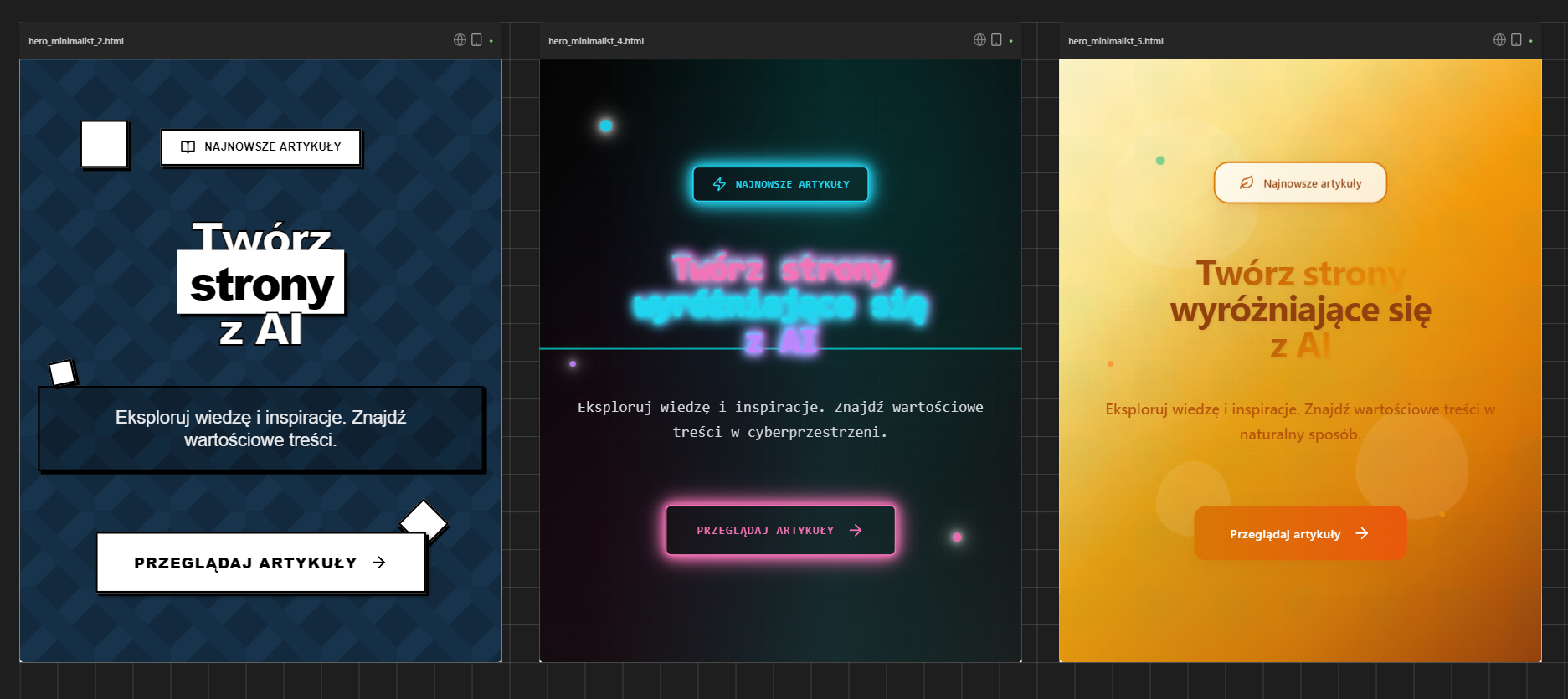
Imagine asking for a "hero" section in five different variants. Instead of waiting for one version and modifying it, Superdesign will display them all side by side. This way you can conveniently compare the design, layout and style of each one, and then pick the one that best fits your project.
How to get started with Superdesign?
The first step is to go to https://www.superdesign.dev and download the right extension for VS Code. After installing it, use the CTRL + Shift + P shortcut and find the new command "Superdesign: initialize Superdesign". A new file called design.md will appear in your project, in the .cursor-rules folder. The corresponding files will also be created for Claude Code and Windsurf.
How to use Superdesign?
We can use Superdesign in two ways:
Using it through the extension
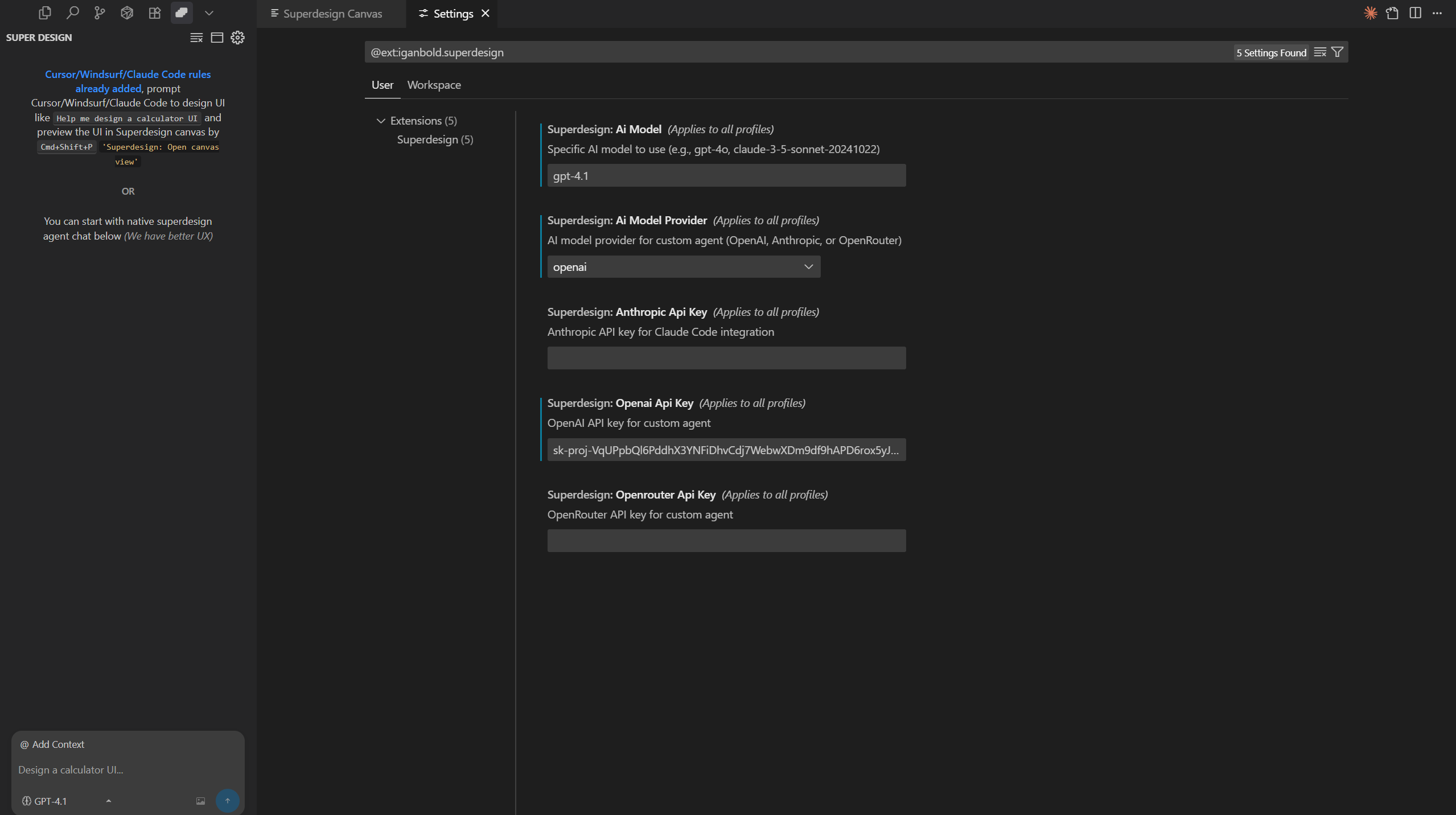
To use the built-in assistant, we need to provide an API key for Anthropic or OpenAI. If you already pay for Cursor, this option may be less attractive for you, because using your own API keys often comes with low limits, especially with the more powerful models. The built-in assistant does, however, have a few useful features that will be described later in the text.
Using it through integration with your own assistant
The second way is to integrate Superdesign with your own assistant, for example Cursor. During initialization, Superdesign creates a design.md file with a whole set of instructions that define when the feature should activate and what to prepare for the visualizations to work. At the very top of the file we can read when the rule should initialize itself: “When asked to design UI & frontend interface”.
Triggering the feature according to this rule doesn't always work perfectly in Cursor, especially when the language of the prompt differs from the language of the rule. That's why, to make sure Superdesign kicks in, it's best to put @design.md directly in the prompt.
@design.mdc help me prepare a new design for the blog hero section but more minimalist. Use the colors saved in the tailwind config
We can add extra instructions to our requests, so that the new design contains all the elements we need. After sending the request, before preparing the visualization, the assistant first returns a simple page plan written in ASCII.
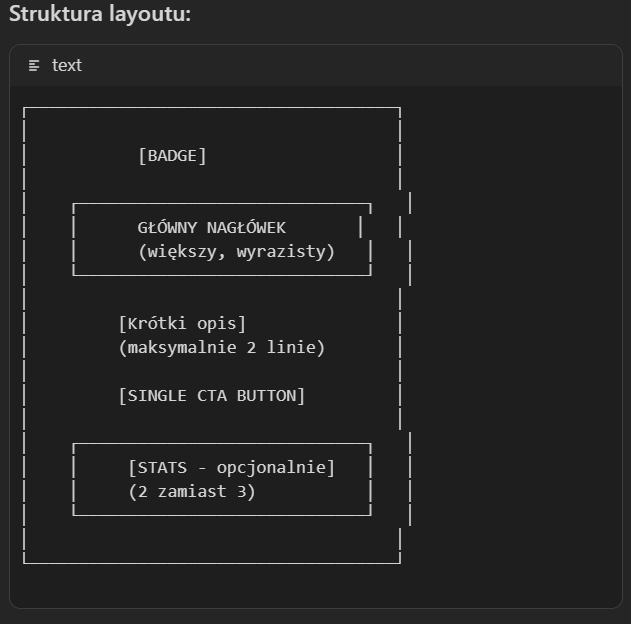
This lets us quickly judge whether the design is heading in the direction we want and, if needed, make changes. If we decide the plan works for us, the next instruction could be…
Great. Prepare 5 iterations
In response to the prompt, HTML, CSS and JS files will be created in the .superdesign/design_iterations directory. We can also ask for them to be put in a single HTML file. Once the extension is installed, we have the Superdesign: open canvas view command at our disposal.
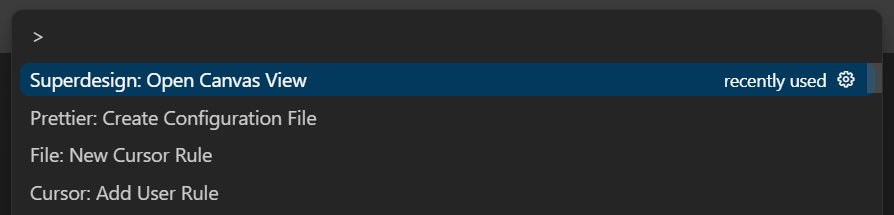
Thanks to this view, we have all the prepared designs neatly laid out side by side.
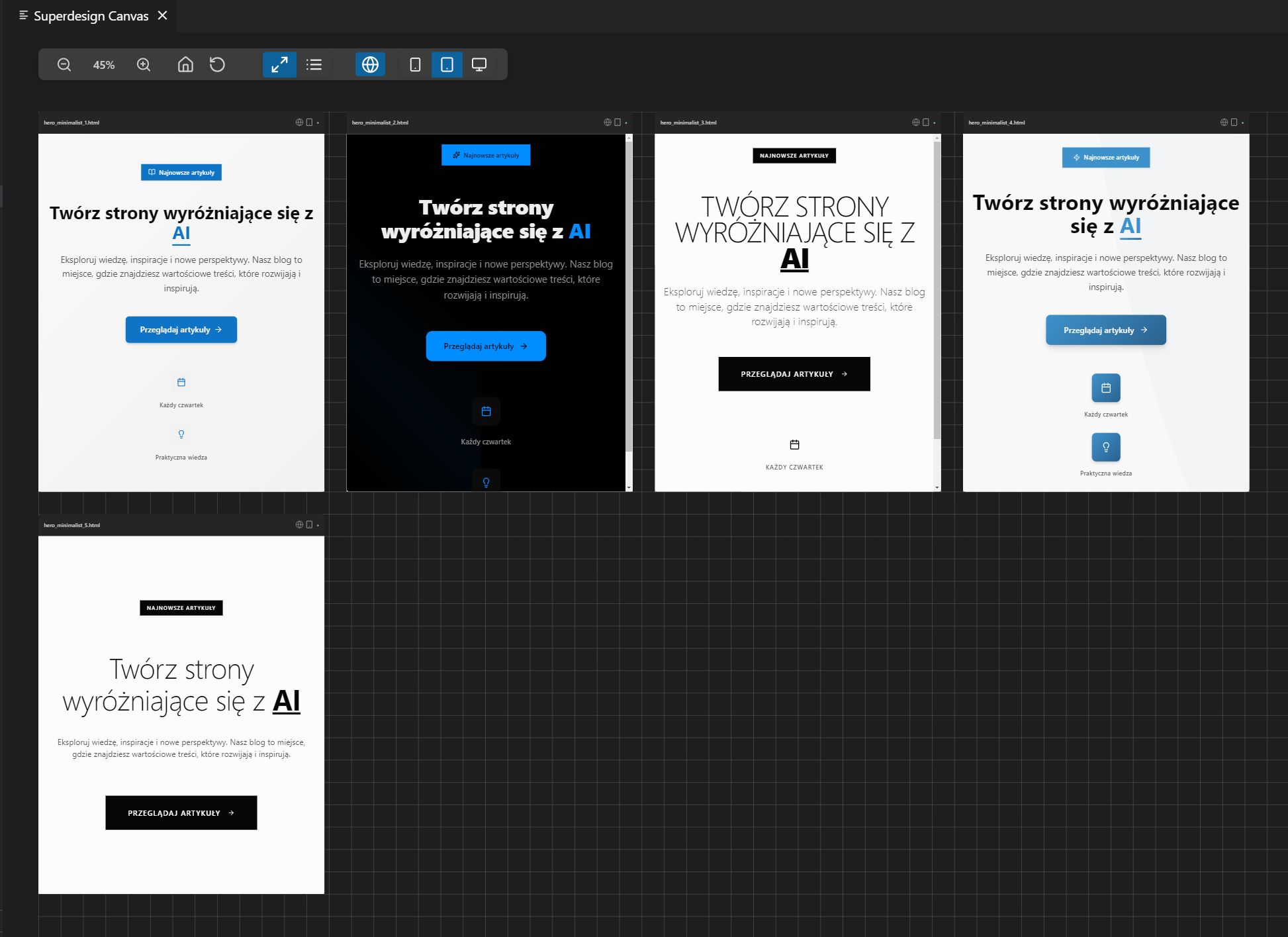
Using the toolbar, we can check how the prepared proposals look on different devices.
After clicking on one of the generated options, additional options will appear.
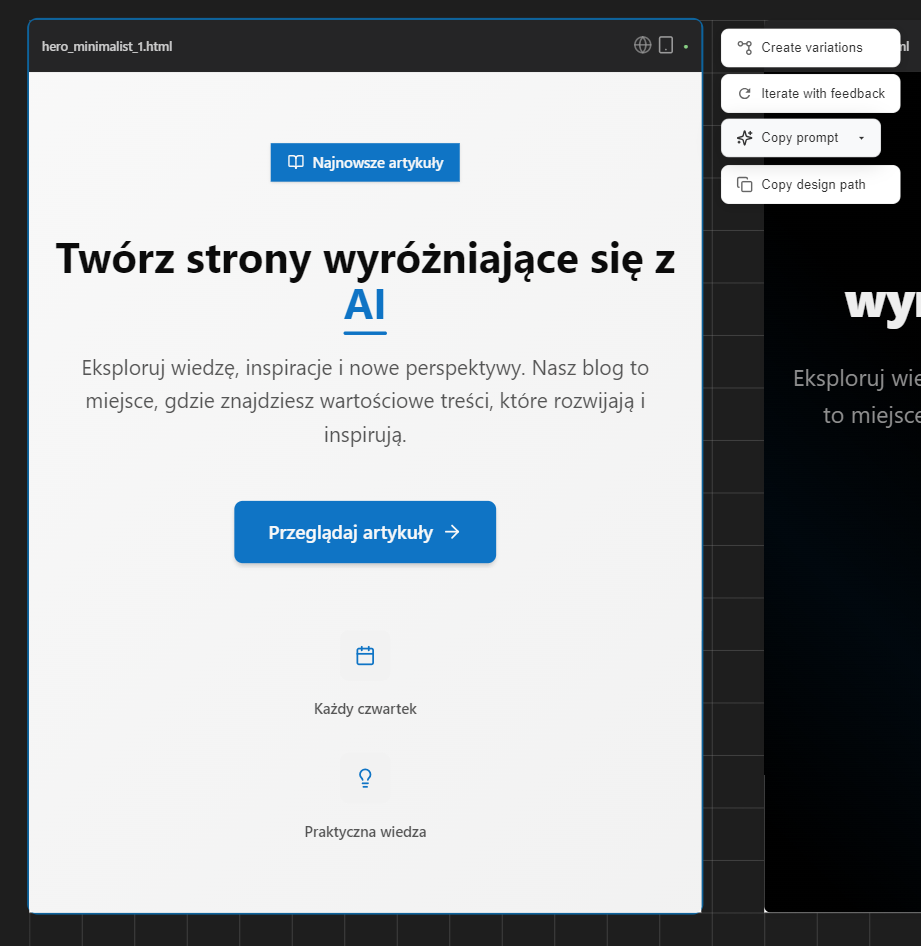
These features are integrated with the Superdesign assistant, and clicking them automatically pastes a ready-made prompt.
- Create variations – attaches the file and adds „Create more variations based on this style”
- Iterate with feedback – attaches the file and adds „Please create a few variations with this feedback:”
We can achieve the same results in our own assistant, but we have to attach the file manually.
Create 5 new variants based on this @hero_minimalist_1.html
When one of the designs works for us, we can bring it into our app. All you need to do is copy the ready-made prompt by clicking Copy prompt → Cursor. It looks like this:
<the element's full HTML>

Above is the design implementation, please use that as a reference
to build a similar UI component. Make sure to follow modern React and
TypeScript best practices.
We can add our own instructions to it, for example „change all CSS classes and styles to Tailwind classes”. It all depends on the needs and specifics of the given project.
Summary
Superdesign is a system that lets you generate, preview and iterate on many code variants at once, which speeds up work considerably. Instead of fixing one version, you can pick the optimal solution right away, which increases efficiency and improves the quality of the project. It's a tool every developer should keep in mind.