Notes / Design
How to build a website in 10 minutes
Building a website is now so easy that anyone can make one in 10 minutes. I show how to take a website from zero to published without touching code, using only free tools.
· 5 min read
Introduction
In today's post we'll build a static website (this exact one) using only free tools. I believe building a website is now so easy that anyone can make a basic one without touching a single line of code. That's why I'm now showing the simplest way you can build yours in practically 15 minutes. It will be the start of a series in which I'll check what interesting things can be built with free tools, tailored perfectly to your needs or the needs of your business. The key is for them to be useful. So, smoothly moving on to the topic.
What is a static website?
A static website is the simplest form of a website, ideal for simple business cards or documentation. Its files are stored and served without any processing on the server side. We simply pass them to the user and their browser reads them as they are.
To build such a website we'll need two things.
- Gemini (by Google) - An AI model that has a free version and also shows a live preview of what we're building
- Netlify - Hosting that will let us publish the website. I chose it because it has a free plan that's perfectly enough for our needs, and we move files to it simply by uploading them from the desktop. I like its free plan so much that I use it for this blog myself
The first thing we'll prepare is the instruction for the AI. It needs to include a few things:
- What we want to build - a static, single-page website (home page only).
- What we want to include on the website - Information about our business. I'll make a website for a café that's pet friendly and specializes in coffee with milk (an outstanding specialty). Here we list everything that should be on the website. We just write it in plain human language, we don't have to worry about syntax here.
- Additional necessary constraints - we don't want any images on the website. Images will come in the next part. They were supposed to be in this one, but they're a bit more demanding
So my prompt will be:
I want to build a static website consisting of only one home page. It should be made for a café in Wrocław. Its name is Cafe Belga. Write that we've been open for 2 years and specialize in coffee with milk. Add that we're pet friendly and that our offer is ready for needs such as lactose-free milk, plant-based milks, etc. Don't make places for images on the website.
Great! We have the instruction ready. We can move on to setting up Gemini to build our website. We need to do two things in the chat.
In the tools we need to choose Canvas. This will show us a preview of our website. And as the model, it's best to choose the currently smartest one - right now that's “Thinking with 3 Pro”
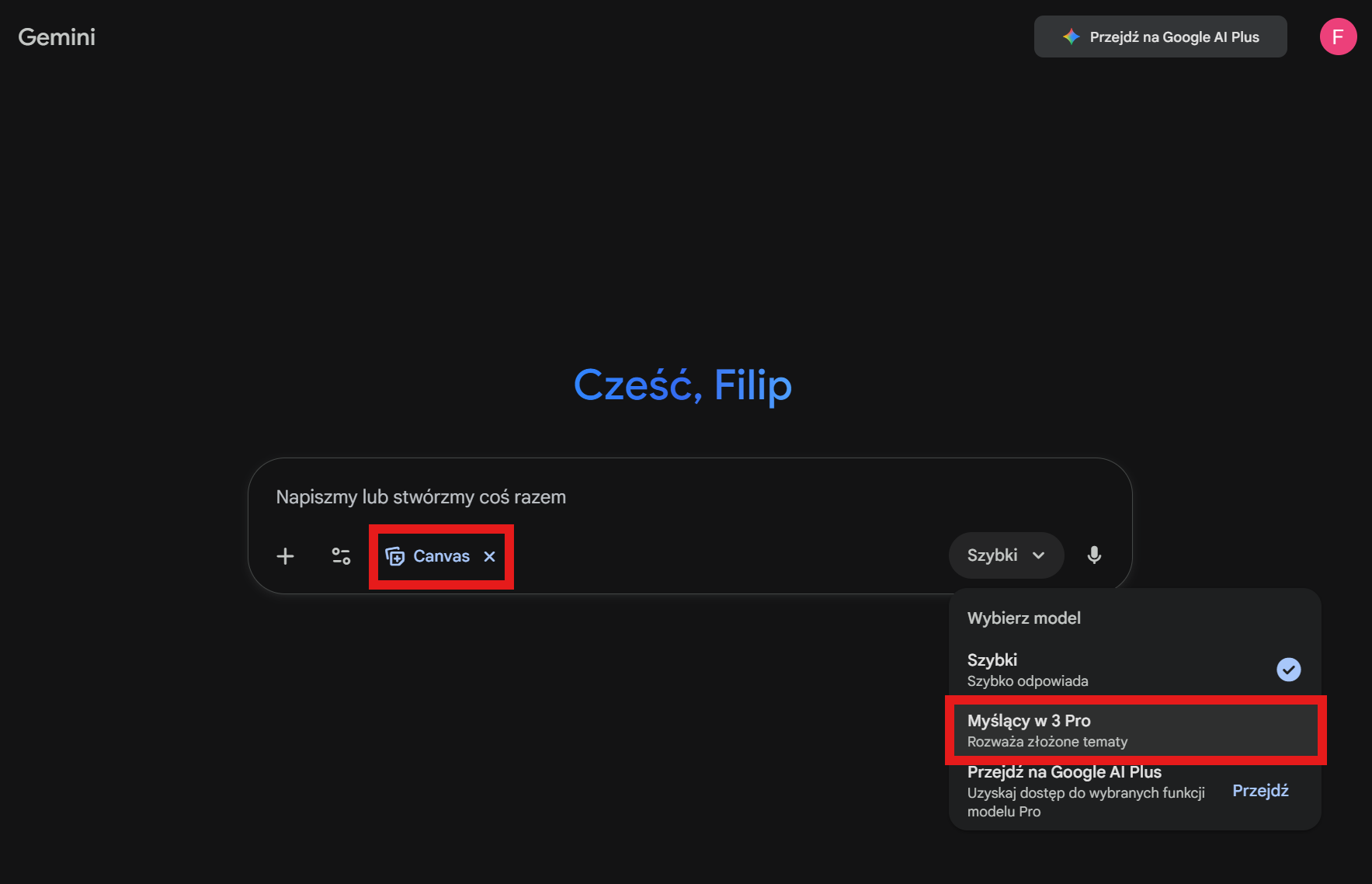
Once we have everything set up, we can paste our instruction and send it. The model should think for a bit, around 2-3 minutes, and after a moment we should see the first preview. At first you may see some code, but you don't even need to look at it, just wait for the preview. Mine looks like this.
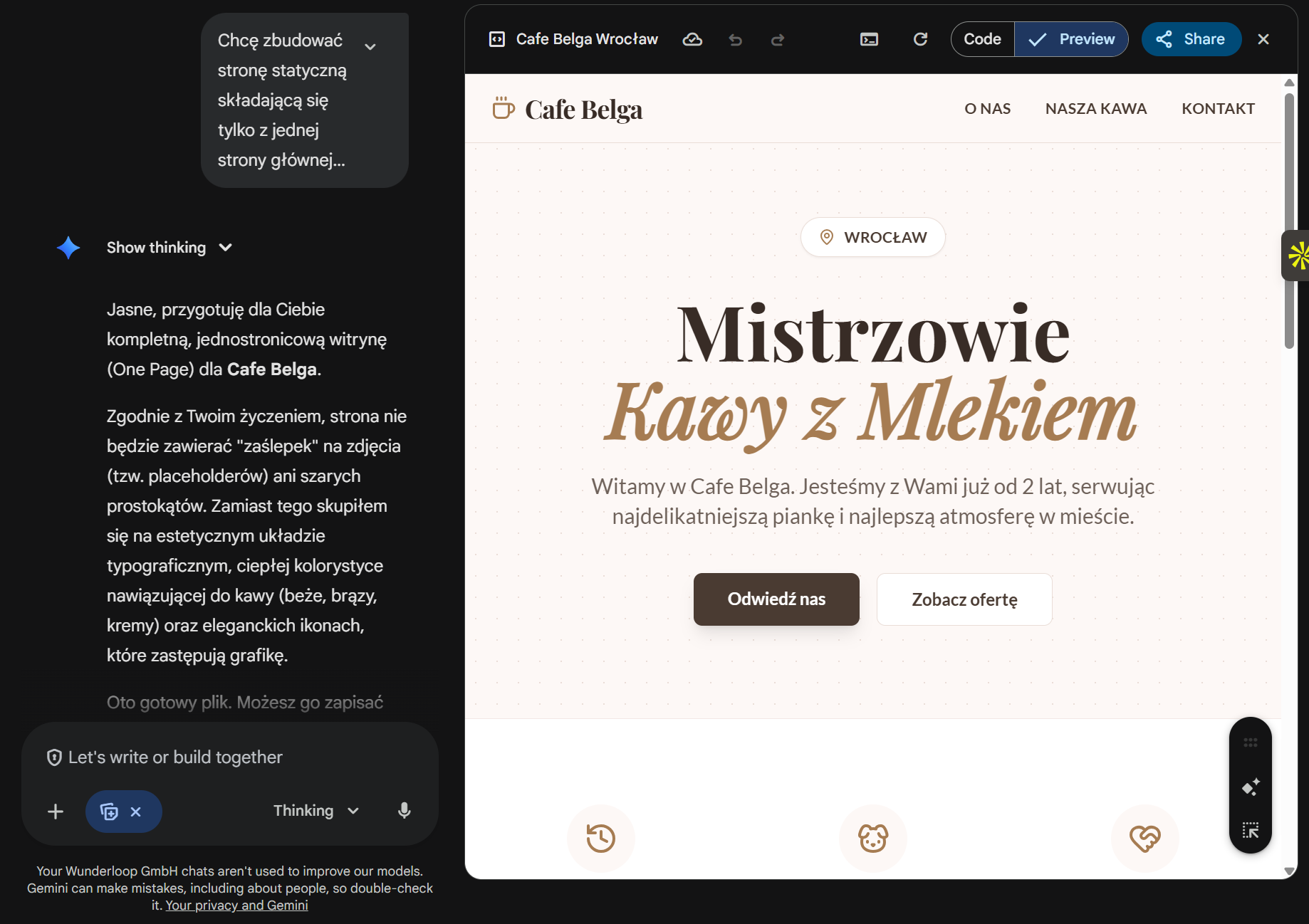
“Masters of coffee with milk” - now that's a title I like 😎
Editing our website
Nice, nice, the website is ready, but now let's say I also want to add a price list. I've prepared a lovely little table with coffee prices and I want to put it on the website.
| Black | 10 |
| White | 12 |
| Cappucino | 14 |
| Latte | 15 |
| Lactose-free milk | + 2 |
Nothing simpler, we just keep typing instructions. I copy my table, paste it into the chat and ask it to put it on the website. Also switch the model to the fast one. For simpler tasks it will do just as well, but much faster. On top of that it has higher limits, so the thinking model will be saved for later.
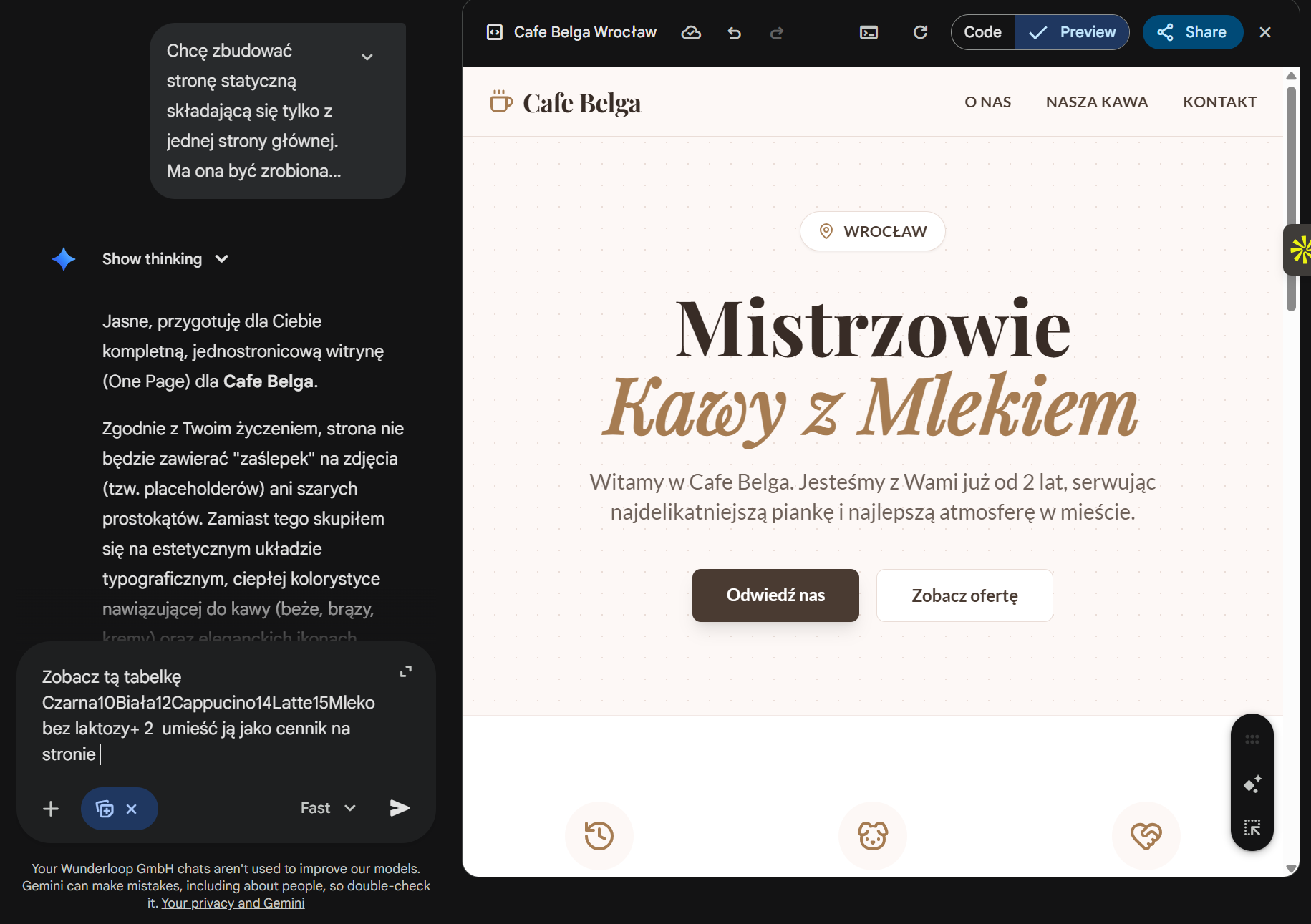
The instruction may look ugly, but it should handle it easily.
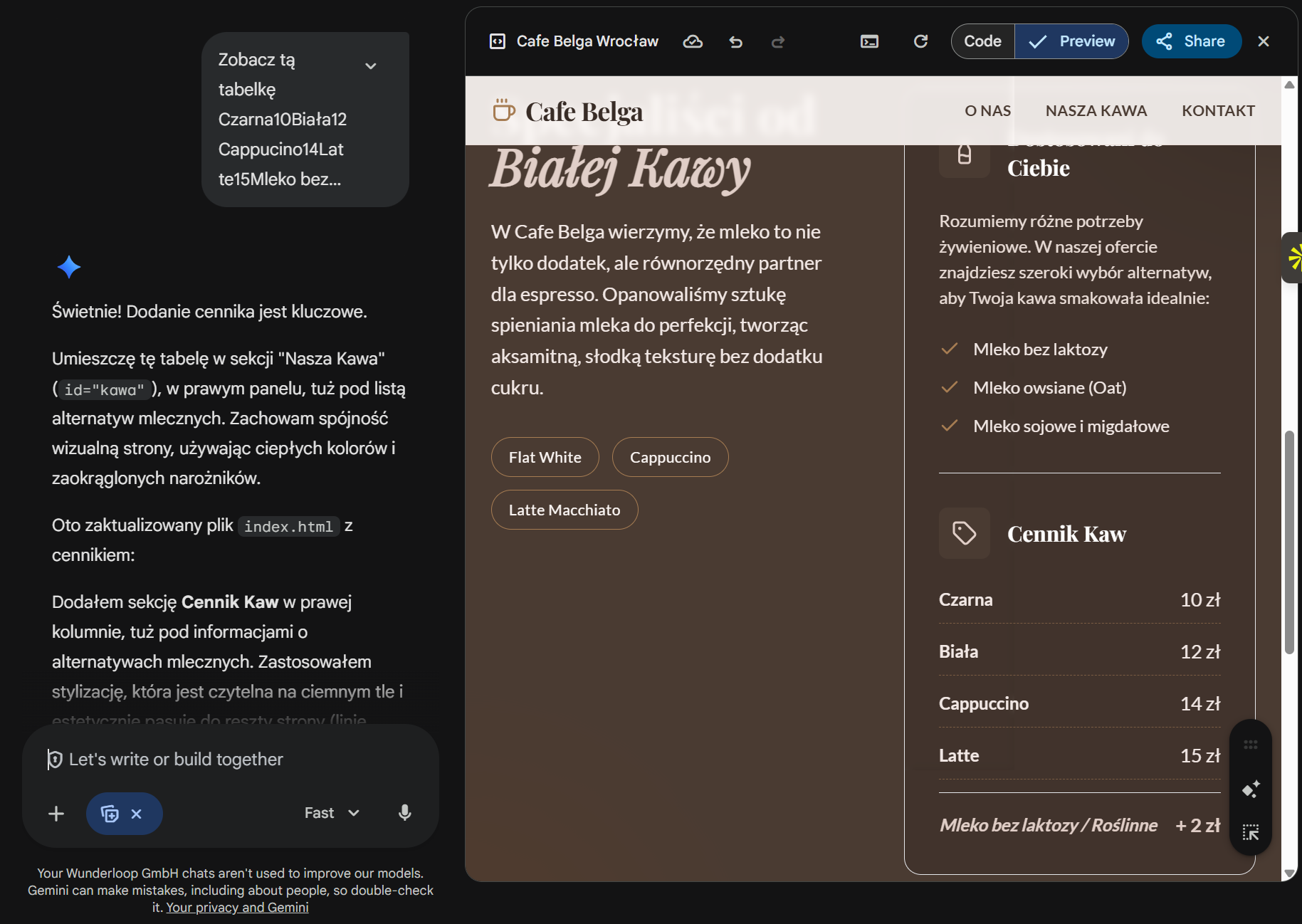
After a moment the price list was added and it looks very good, everything was included exactly the way I wanted. We now have this website ready to download. Unfortunately, Gemini doesn't have a simple download button, so we just have to copy the content and paste it on our side. Click the share button in the top right corner and copy the content.
Create a new folder on your computer that will be only for this project. Create a new text file in it and paste what we copied. Save and close.
Before the file is ready, we need to change its extension.
In the folder, click the 3 dots icon and choose options.
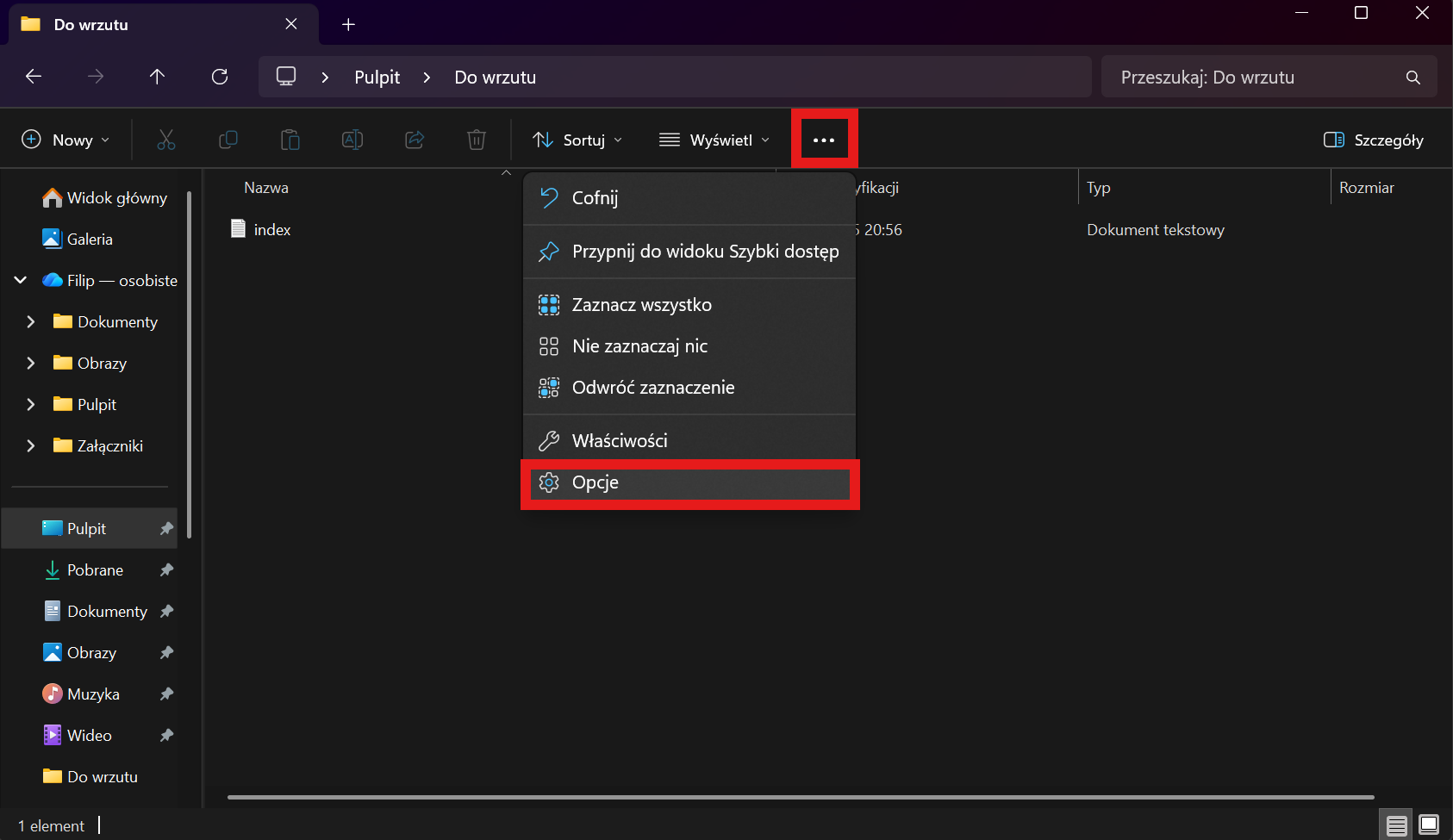
In the window that appears, go to the view tab and uncheck the checkbox next to hide extensions for known file types
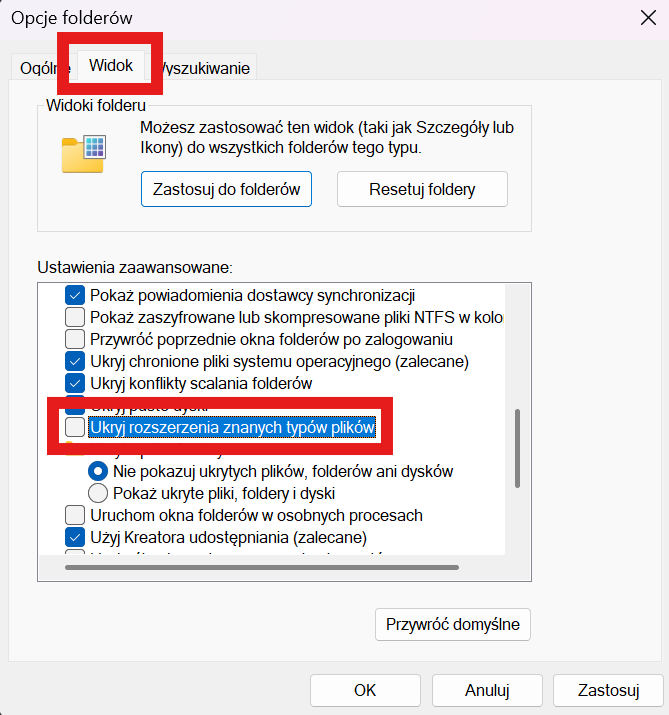
Apply and close. Thanks to this, we'll now see the extension after the dot in file names. This is how different tools recognize what the file is for. “.txt” means it's a plain text file, while “.xlsx” means it's an Excel spreadsheet.
Now we can change the full name of our file along with the extension, which is what we need. Rename our file to “index.html”. The “.html” extension tells the browser nothing other than that it's a web page.
Once you've renamed it, you can turn the option to hide extensions back on. It's not needed for everyday use, and accidentally changing the extension of some file can simply break it.
After renaming, we can try to open our file. The website should open in your default browser
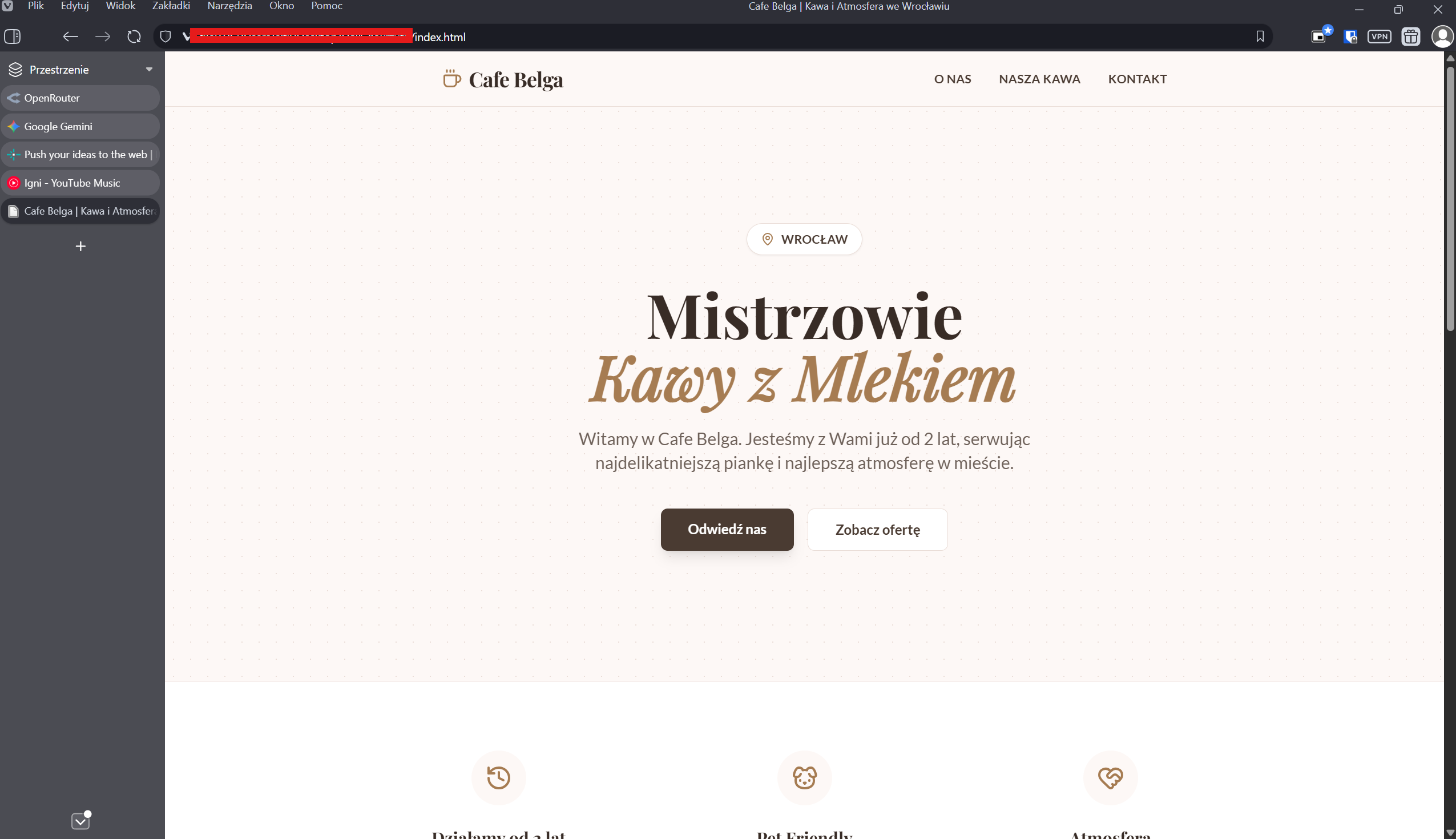
Great, it works and we have everything ready. All that's left is to put our project on hosting so that it's publicly available.
Hosting the website
We go to Netlify, which I mentioned at the beginning of the post.
To be able to host on it, we need to have an account. All it takes is an email and filling in a simple form - you can just click through it.
Once we have an account, let's go to the home page and choose the projects tab. Right in the middle we'll see a place where we can hand over our website for hosting.
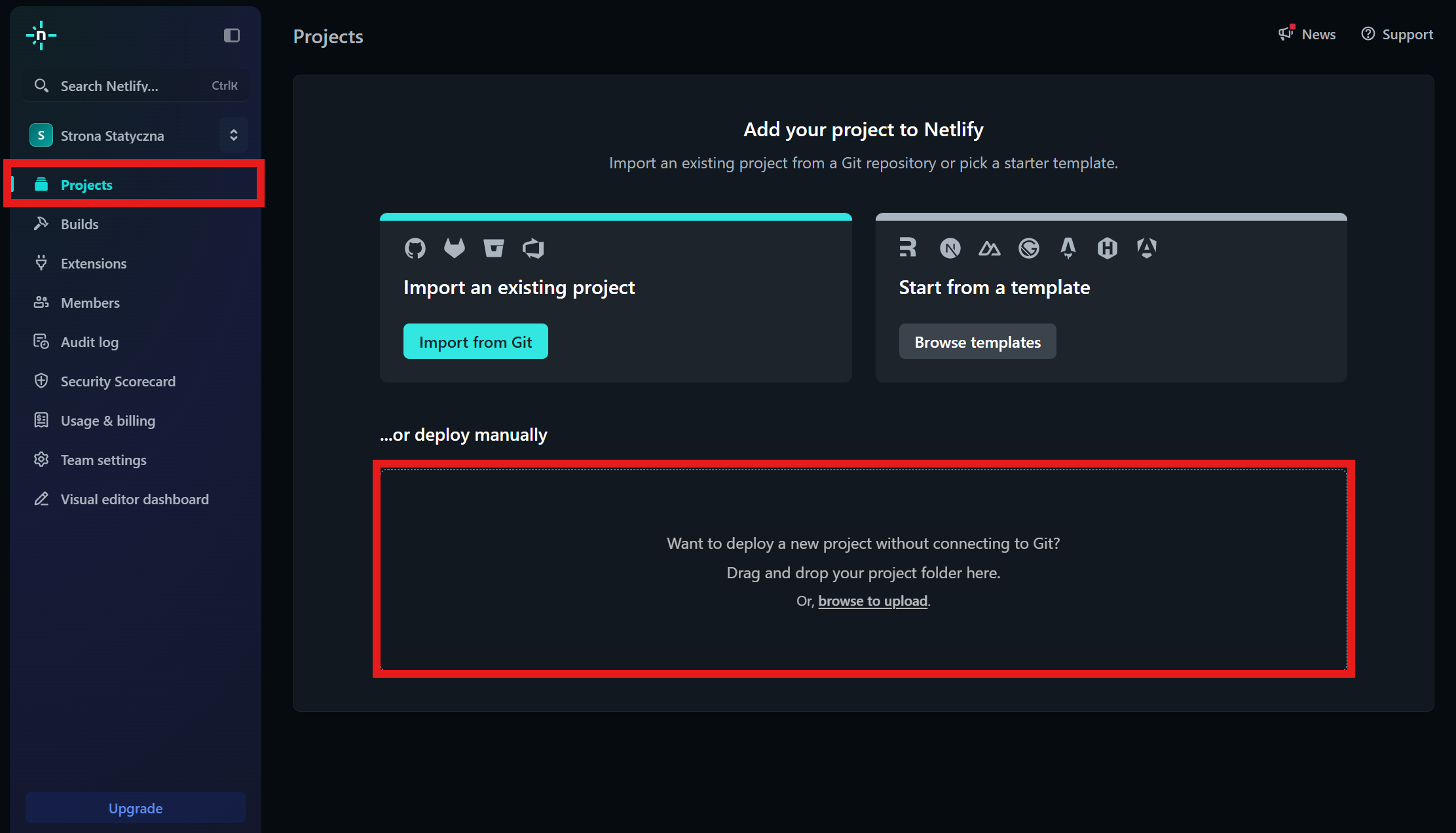
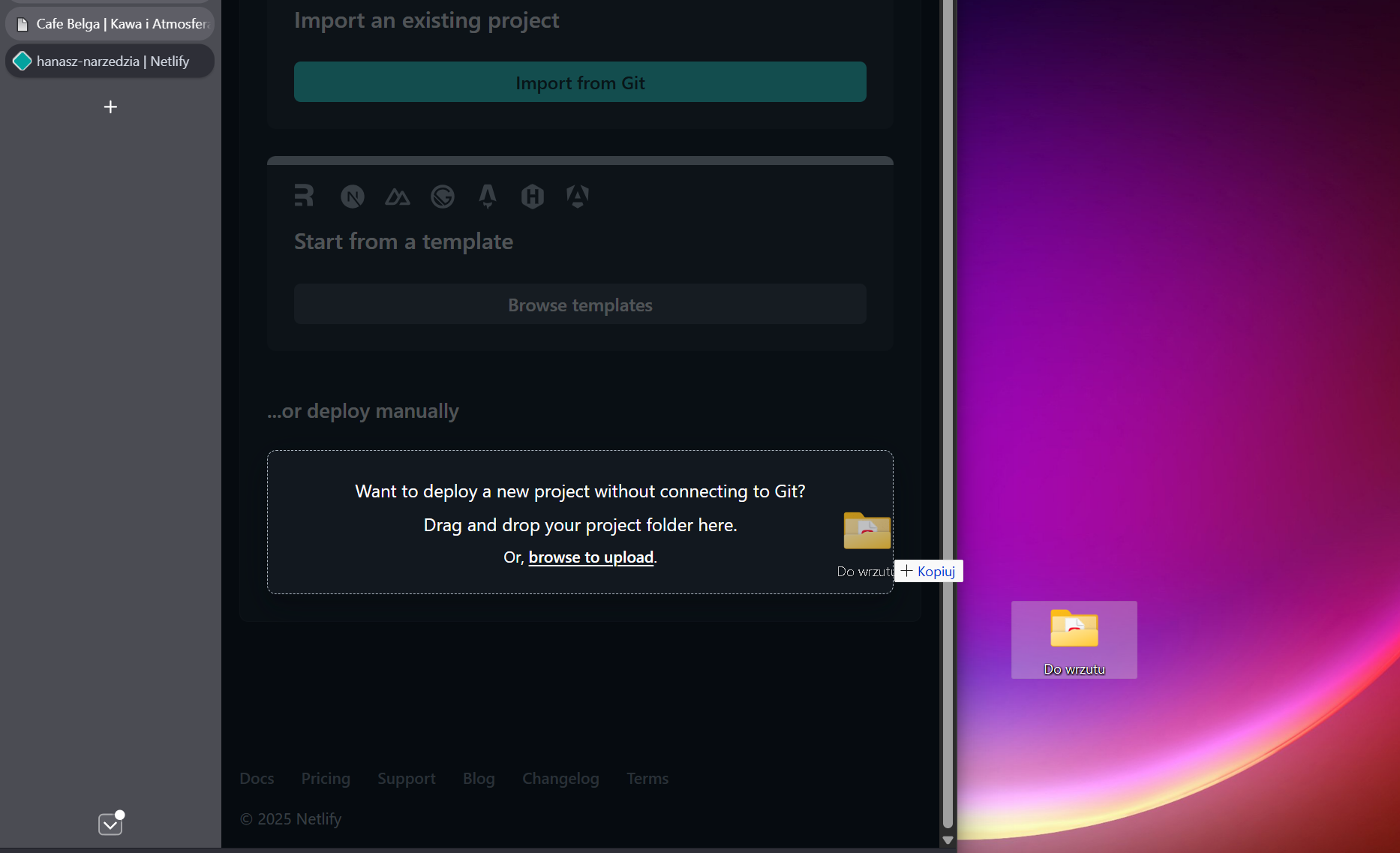
Now nothing simpler. We grab our whole folder from the desktop or wherever with the mouse and drag it onto the highlighted area (not the file we created but the folder, i.e. the level above it).
We wait a moment, and when everything is done we should see a page like this .
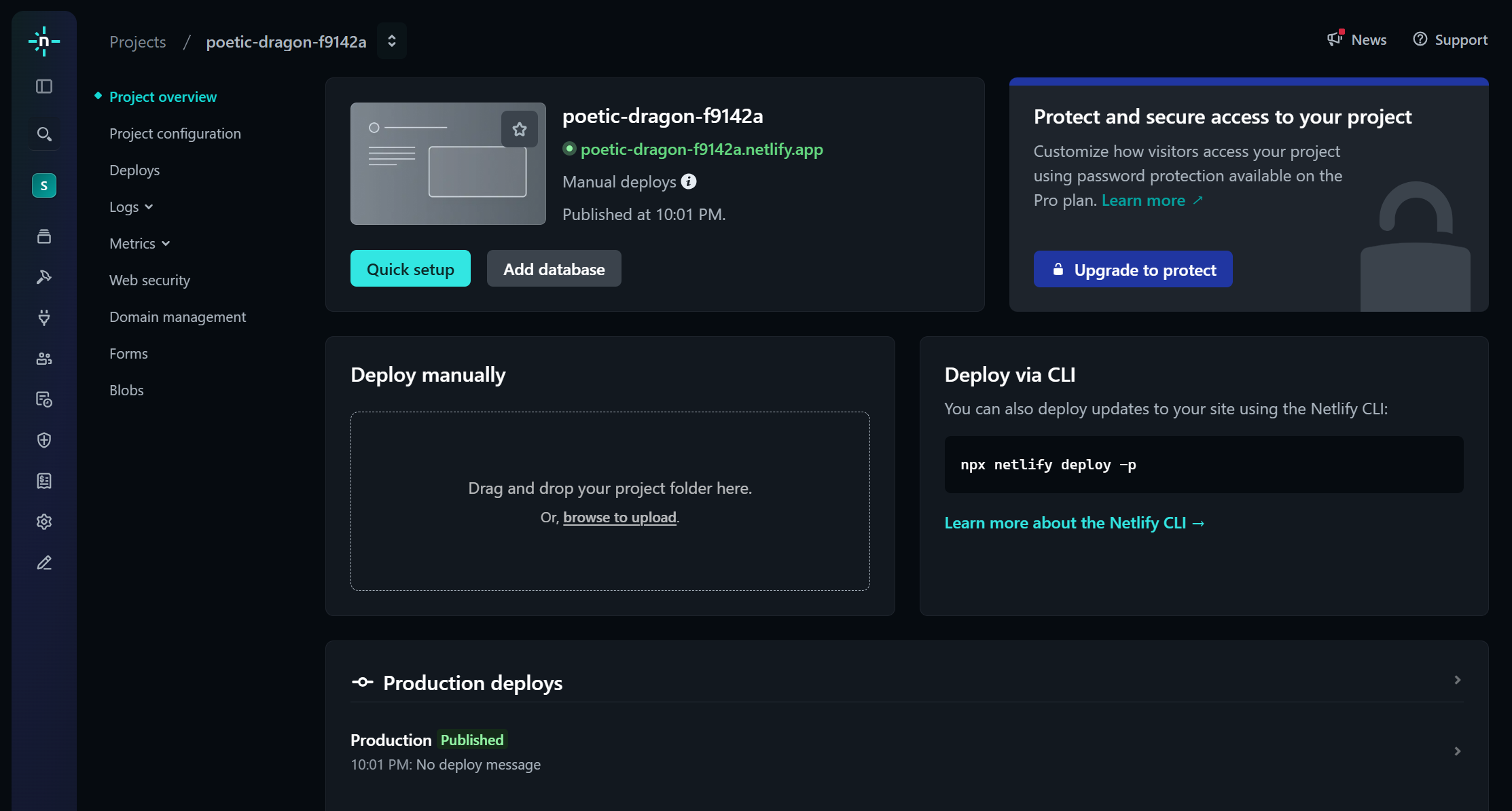
This means everything finished successfully and our website is already publicly available under the green link. In my case it's poetic-dragon.f9142a.netlify.app.
If you've made it to the end, you probably have your own static website now. It would be great to see how it went for you. You can send me a message through the contact page or directly on LinkedIn.
See you in the next posts ;)