Notes / General
Claude Code Router, or many models in our assistant
Swapping models in our coding assistant and showing how to access practically every model through a single API
· 5 min read
Introduction
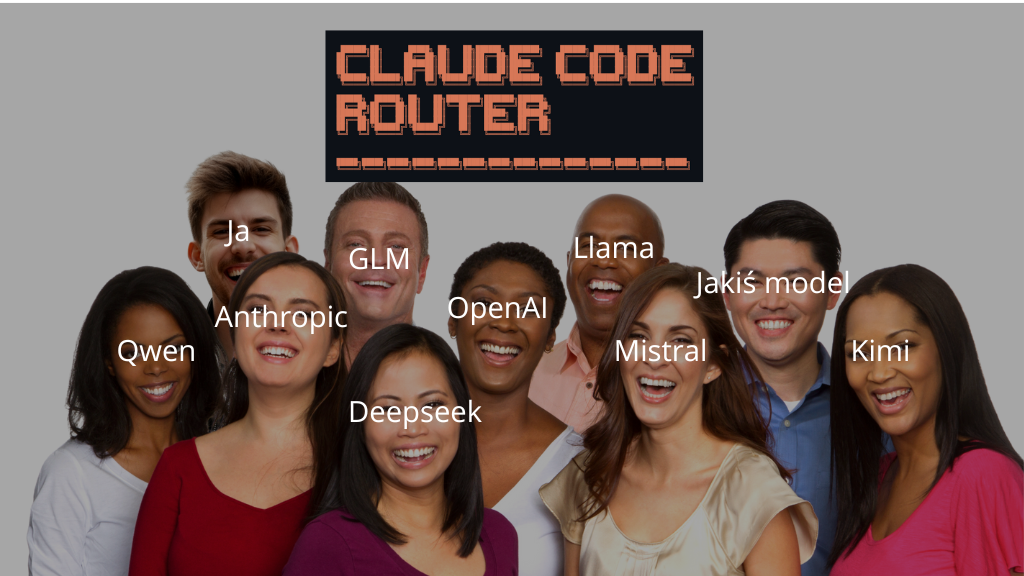
Today, about a project that lets you easily connect Claude Code (CC) to other models. It's called Claude Code Router (CCR), and in this post I'll describe how to install it and connect it via API to Openrouter, a website through which we can use practically all the most important models. Thanks to this, we'll be able to switch between them very easily. So without further ado.
How to install Claude Code Router?
To install CCR we need two things:
- Node.js downloaded - download and install it from this page
- CC downloaded and installed - below I'll give the command to download it through node.js.
Once we have node downloaded, we can use the npm command in the terminal, so let's move on to downloading CC if you don't have it yet.
Open the terminal and type:
npm install -g @anthropic-ai/claude-code
If you got a message to add a variable to the PATH environment variables, check out this post.
After a moment CC will be installed on our computer, and we can use the second command to install CCR
npm install -g @musistudio/claude-code-router
And that's it. At this point we have both apps, and now it's time to check whether everything works correctly.
How to use Claude Code Router?
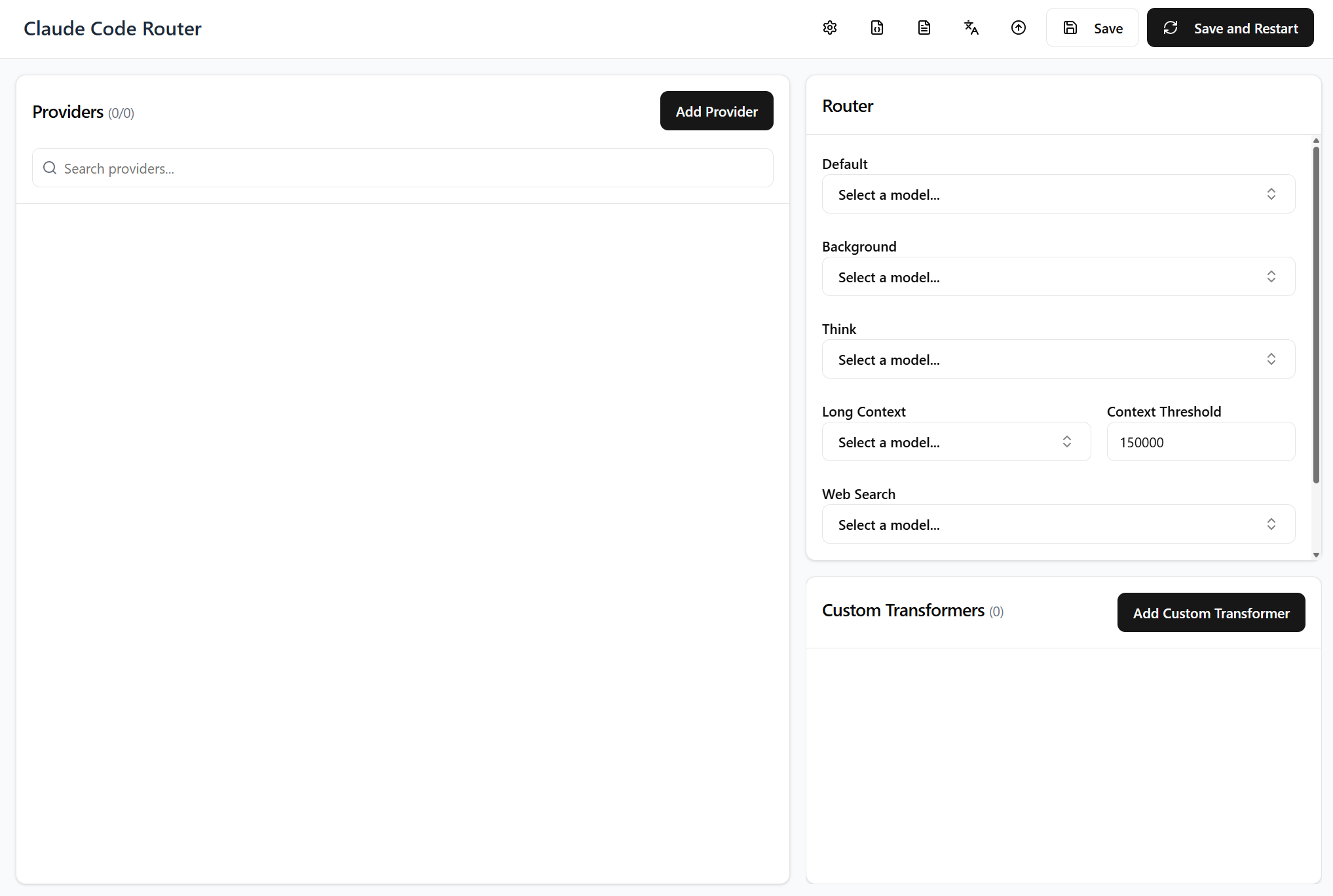
Close and reopen the terminal, otherwise the newly installed commands won't work, and type ccr ui. After a moment a web page will open where you should see the currently configured models (that is, nothing, because we're only about to add them)
Now let's go to the Openrouter website. It's a very convenient website to use, because through one API we get access to many models, and on top of that it's big enough that apps like n8n already support it. Create a new account there. If you want, you can add some funds, then you'll be able to use more models, and if not, you'll be able to try your hand with the free ones. They do, however, have very low limits.
Once you have an account, click on your profile in the top right corner and go to the Keys tab. Create a new API key and name it whatever you like, although I recommend naming keys after the place where we use them. This way, in the future we'll know whether we can delete them or are still using them, which is why mine is simply called Claude Code Router.
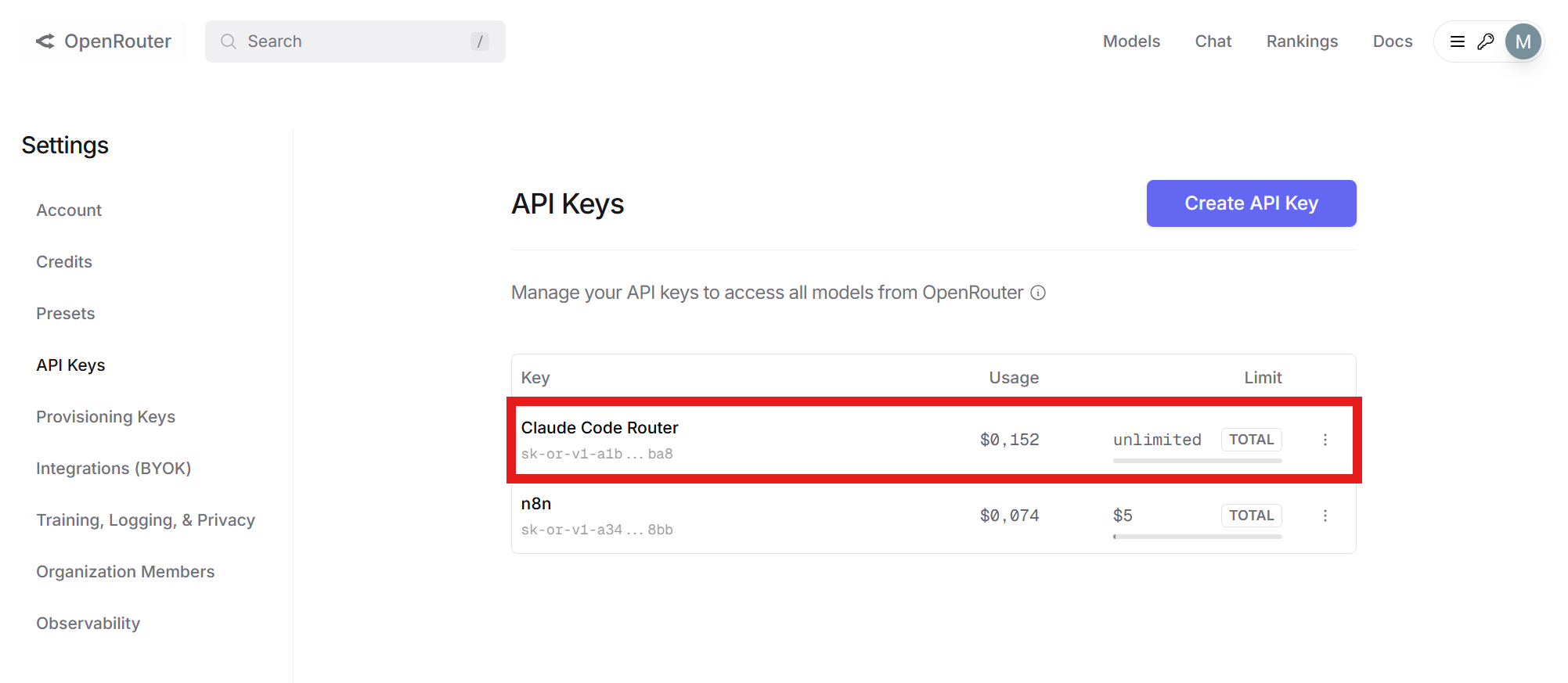
Copy the API key that popped up and let's go back to our CCR tab. We'll now add new models. I picked two and will add them:
- free: kwaipilot/kat-coder-pro:free
- paid: z-ai/glm-4.6
The names are needed to add them to CCR. You can find the full list of models along with their cost on this page. So how do we connect them now:
- Choose the Add Provider button
- From the Import from template dropdown choose Openrouter (for me the mouse scroll doesn't work in this field, so I just drag the scrollbar with the cursor to get down to the openrouter option)
Practically all the fields have been filled in for us, all that's left is to paste our API key and enter the additional models we want to use. I delete the default models so they don't confuse me for now and add the ones I listed above.
- Copy the full model name I pasted above
- Paste it into the Models field
- Confirm by clicking Add Model
This way it will be added to the list
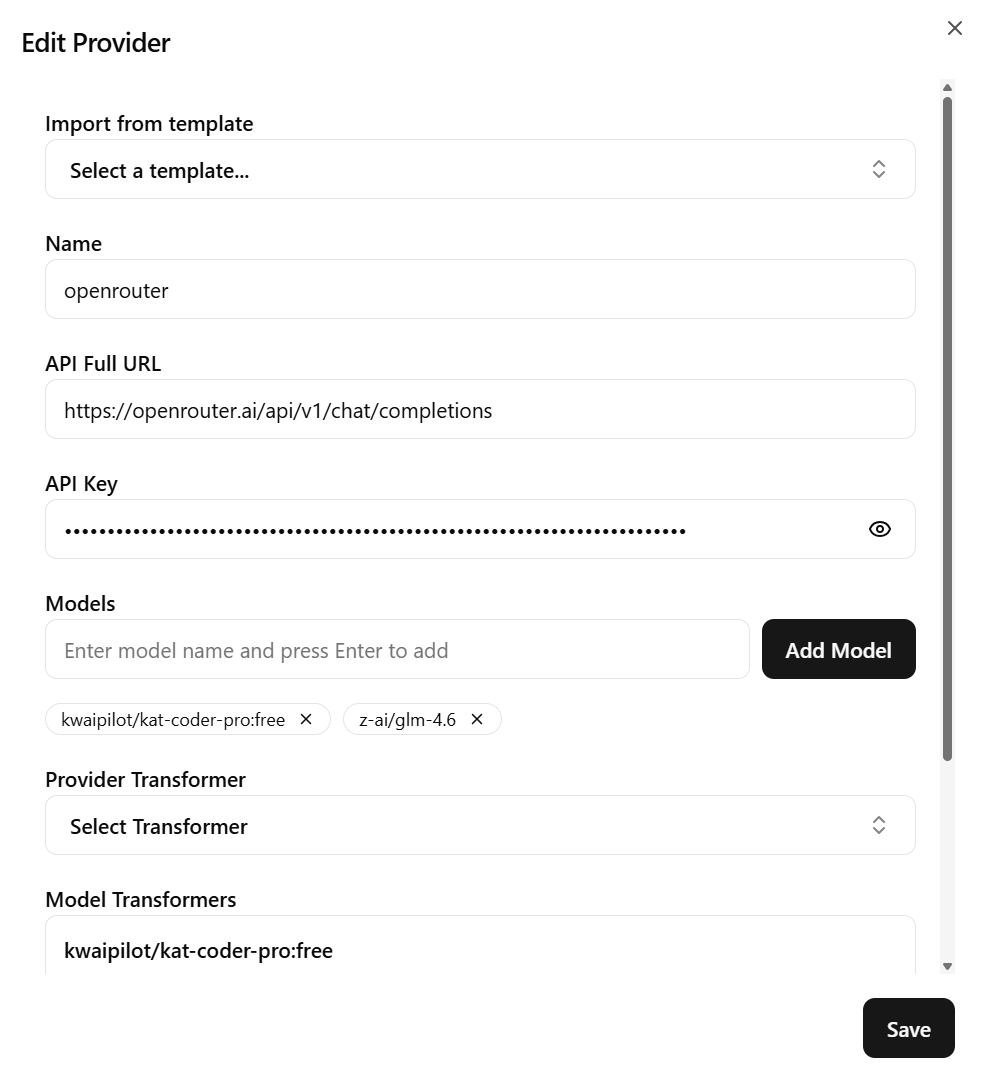
I don't add any transformers. They aren't required and aren't needed for basic use either.
We save the connection by clicking save and we can now see that the models have been added to the list.
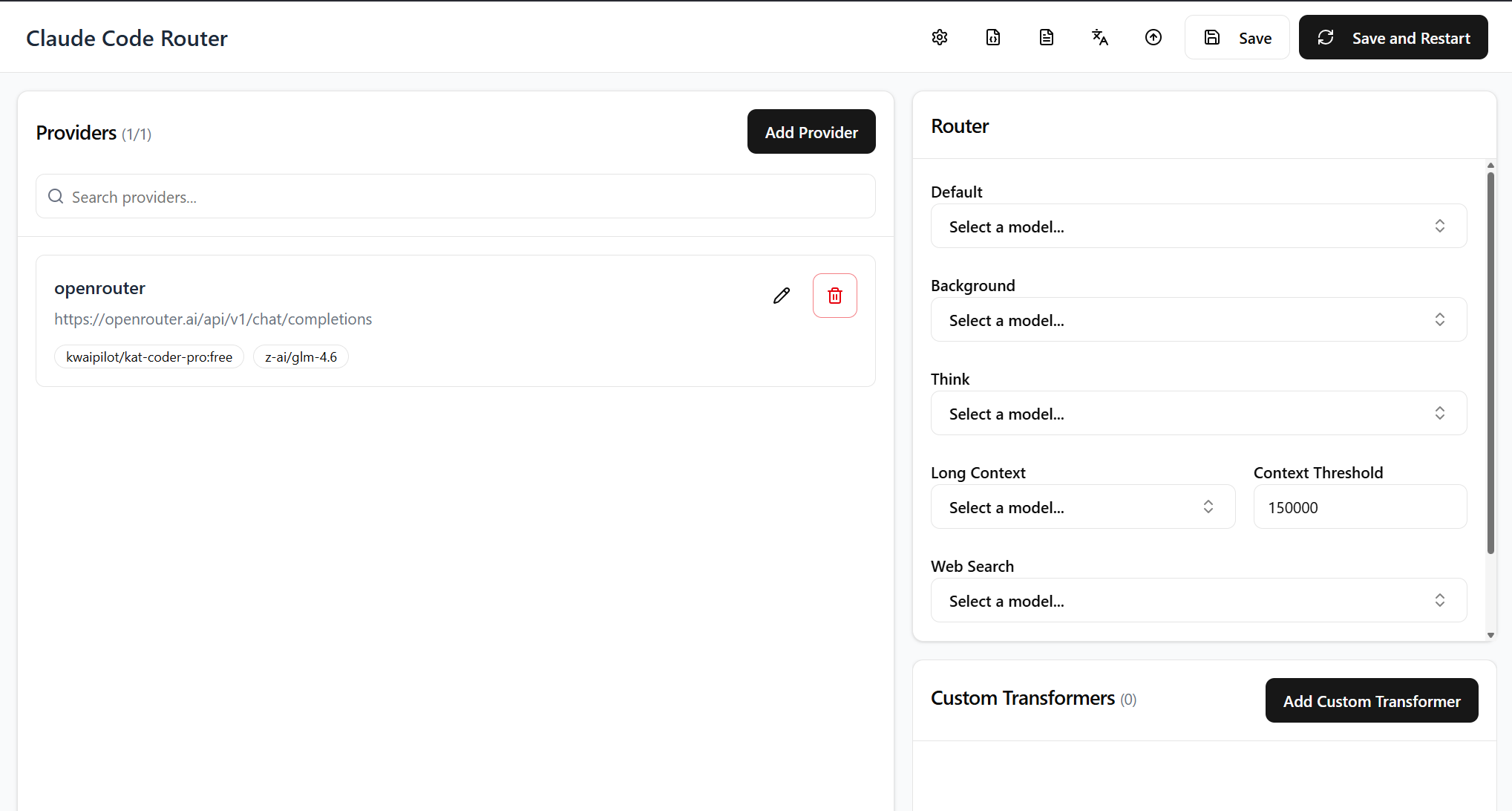
Now, to choose one of the models that will run in our assistant, we need to assign it as default in the router tab. We don't need to set the rest for now.
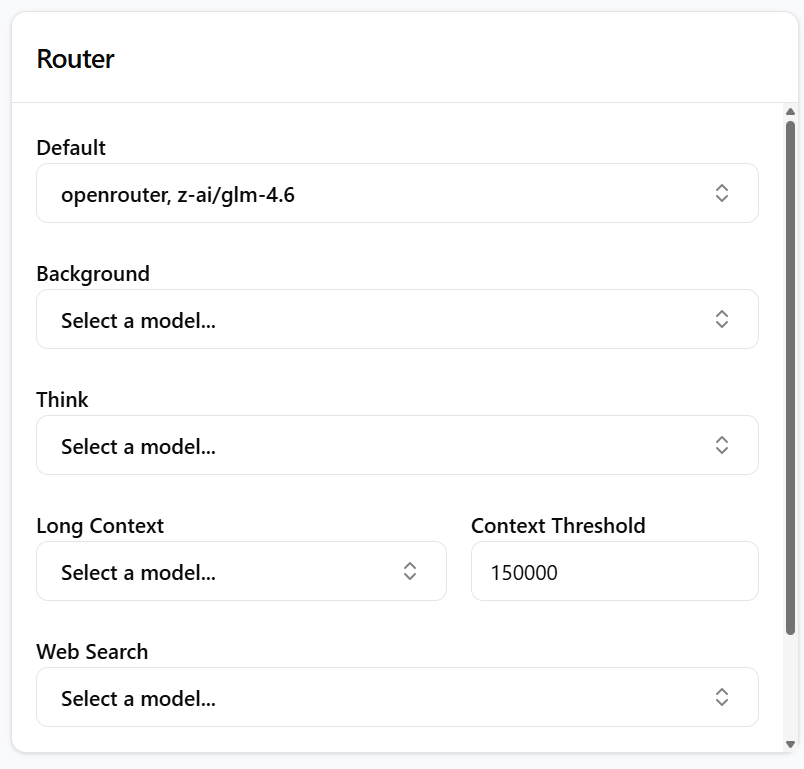
To start, I picked the paid model. To save our changes, I click Save and Restart in the top right corner and can now go back to the terminal.
Tests after installation
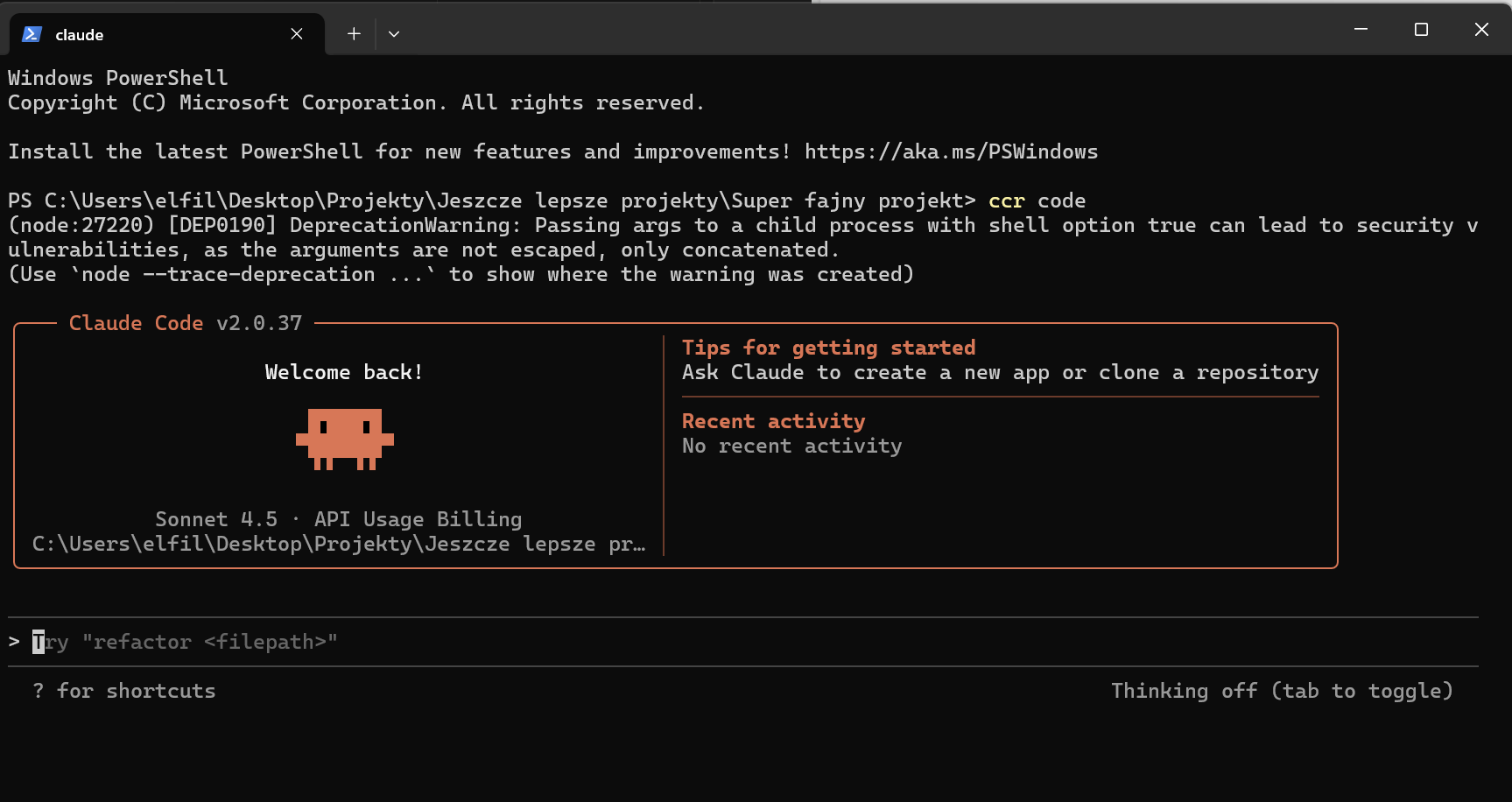
I create a new folder in the place where I want to keep the project files and open a terminal in it. To now open our CC with the new settings, we type the command ccr code We'll see exactly the same view we'd get using CC on its own, but it will already be running with our models (don't worry that it shows Sonnet 4.5, this interface doesn't show which model we're using).
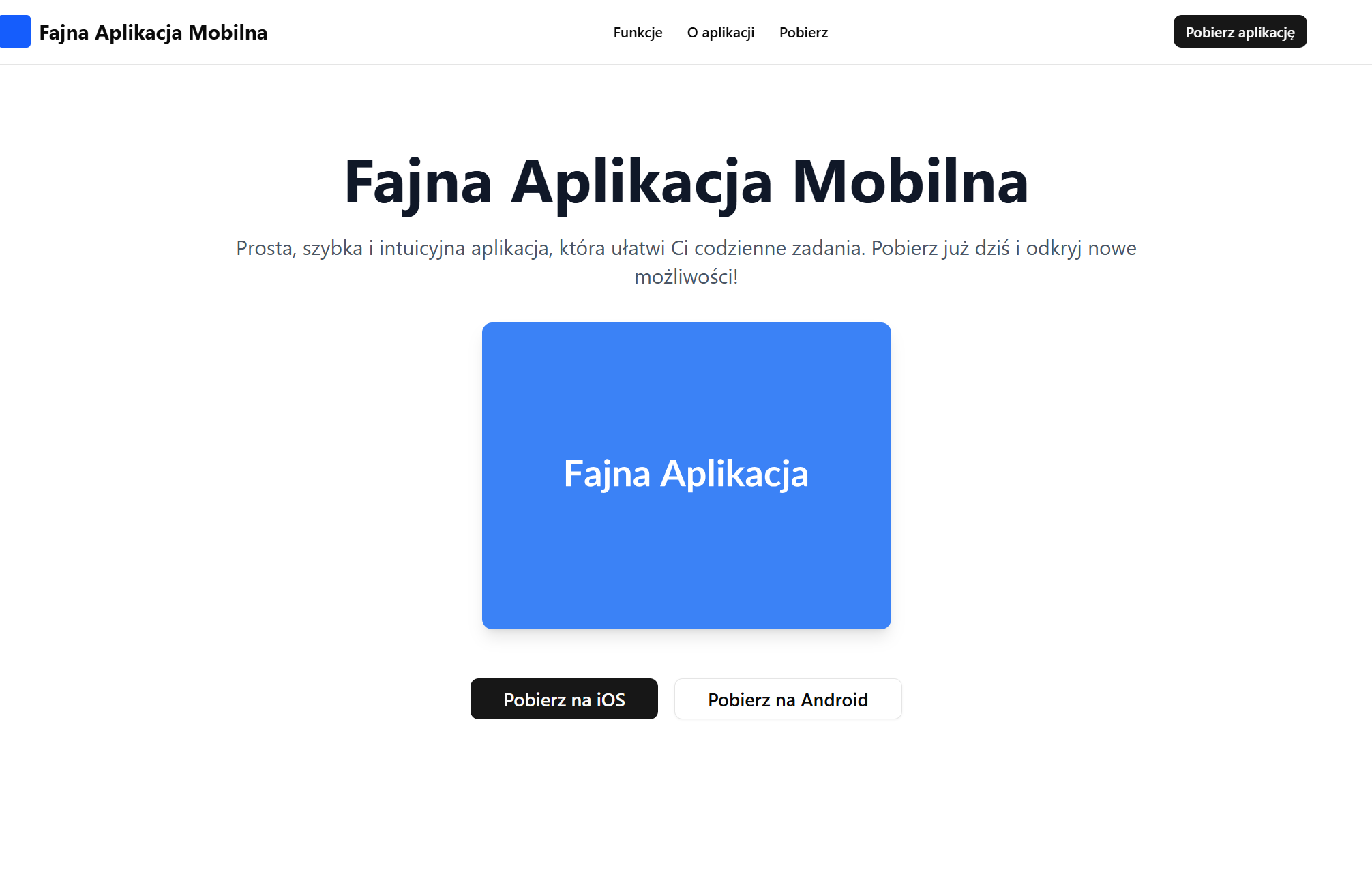
As a test, I'll try to use both models to create a basic next.js project and, on top of it, a landing page for a mobile app called “cool mobile app”.
So the prompt for both models is:
Create a base next.js project with shadcn, which will have only one home page presenting a mobile app called “cool mobile app”. The page should consist of at least 3 sections and must include a navbar and a footer. Instead of images, leave placeholders from https://placehold.co.
Paid model
Half a million tokens later, we have the base of a next.js app initialized and a landing page that came out… well, so-so. But it deserves a plus for the effort, and most importantly it works, because now we can juggle between models as much as we like.
Free model
Unfortunately, free models have very low limits if we haven't bought any credits.
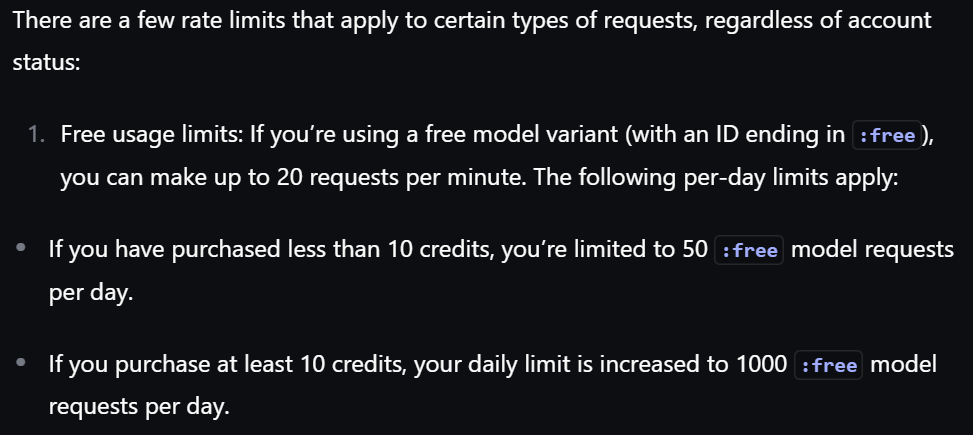
Since I only bought 5 credits, I have a limit of 50 requests per day and 20 per minute. Which isn't much.
No matter how I tried, nothing could be done. I kept getting an error and a message about exceeding the limit. Even if I had only just entered the first prompt. So without buying credits, there's no point counting on the free models.
Switching between models
To switch between models, we need to type its name manually with the /model [model name] command in CC.
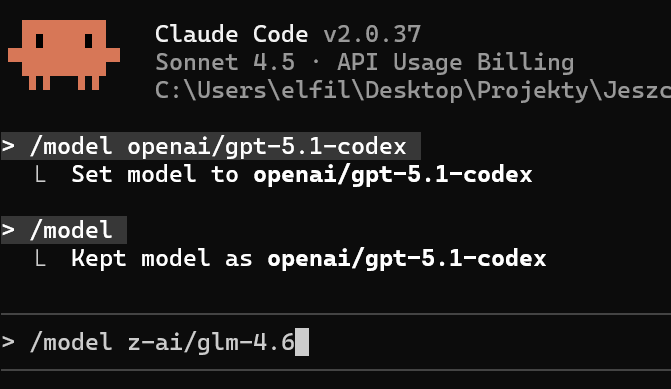
Unfortunately, our models won't be available in the selection list when just choosing /model . The second option is to change it from the ccr ui view, where we change the default model and save (I prefer this second option). I suspect that over time they'll manage to make it simply selectable from the list of models.
So go ahead and test different models. You can let me know on LinkedIn whether it was useful to you. Either way, I think we can get a lot more done with $20 on openrouter than with Anthropic's $20 subscription plan.
Sources
Repository: https://github.com/musistudio/claude-code-router