Notes / Design
The 21st century developer
A library of ready-made components that will take your projects to the next level. I'll show you how to add impressive effects with a single prompt and level up the look of your app.
· 2 min read
Introduction
21st dev is a collection of components prepared for convenient browsing and filtering, so you can easily find the ones you need right now or feel will fit your project.
We add them through ready-made prompts that can be copied from every component. This approach makes it easy to add extra instructions so that it fits our layout and works well with the elements we've already built.
Every prompt starts with:
You are given a task to integrate an existing React component in the codebase The codebase should support: - shadcn project structure - Tailwind CSS - Typescript If it doesn't, provide instructions on how to setup project via shadcn CLI, install Tailwind or Typescript.
That's why, so that the AI doesn't change too much, it's best if we already have these configured or are starting from scratch.
How to use 21 dev
We go to the 21 dev website and pick the category of elements we're interested in. In each of them we'll see a few options to choose from. When we hover over them, most have a short video prepared showing how the component works, and it will play on the thumbnail, which makes browsing much easier.
When we like one of the components, we click on it, open its preview and choose “copy prompt”.
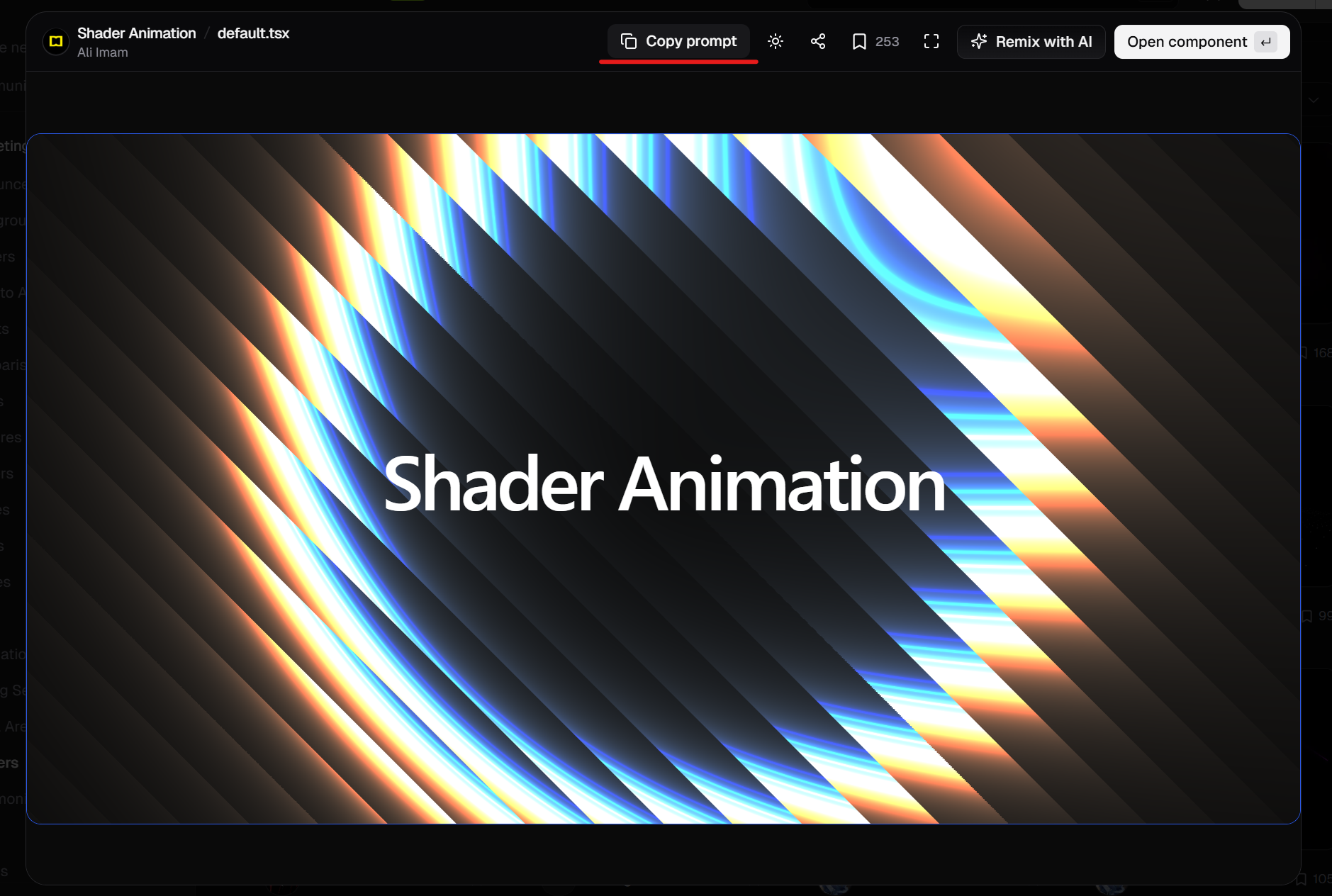
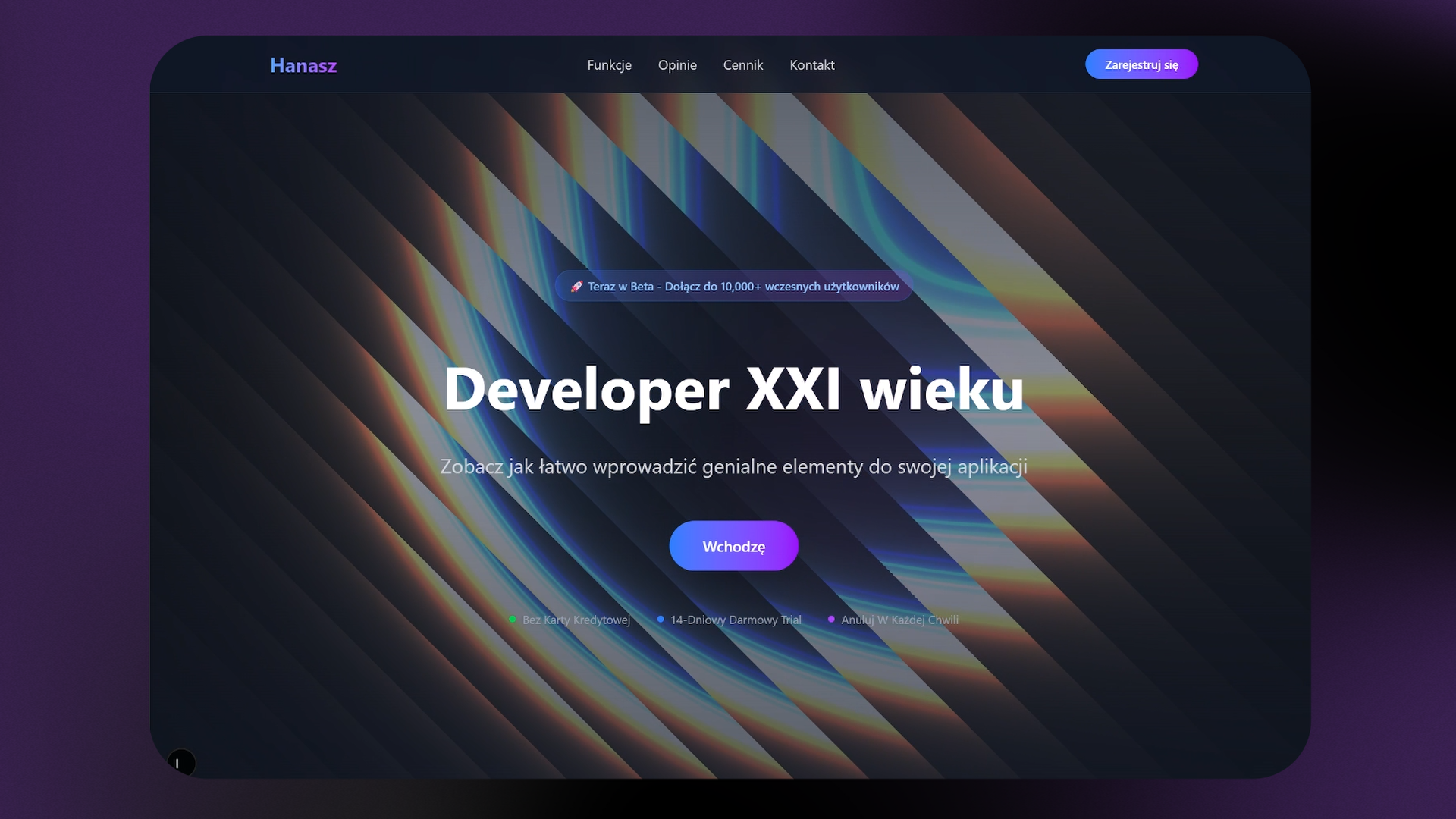
We go to our project and paste it into our coding assistant. If we need something, keep components in a specific folder, want to put it in a particular place or use our own colors, let's add that to the prompt. I pasted the prompt on my test website and added “Paste this component as the background of the hero section”.
The result came out perfect
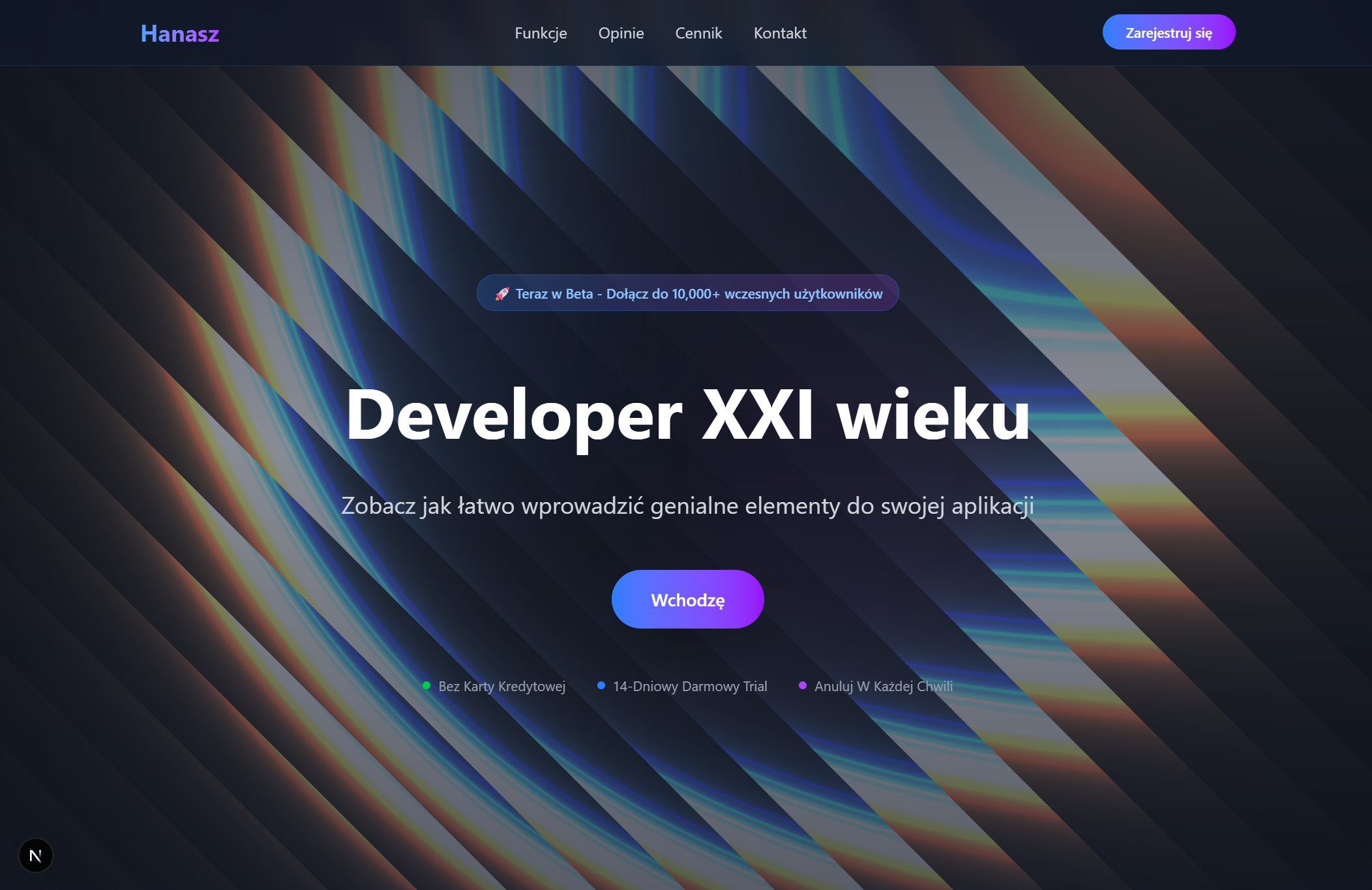
The shader runs smoothly and the structure didn't suffer. To match it even more to my style, I asked for the shader animation to be more blue - very vague… but to my eye it turned out even better
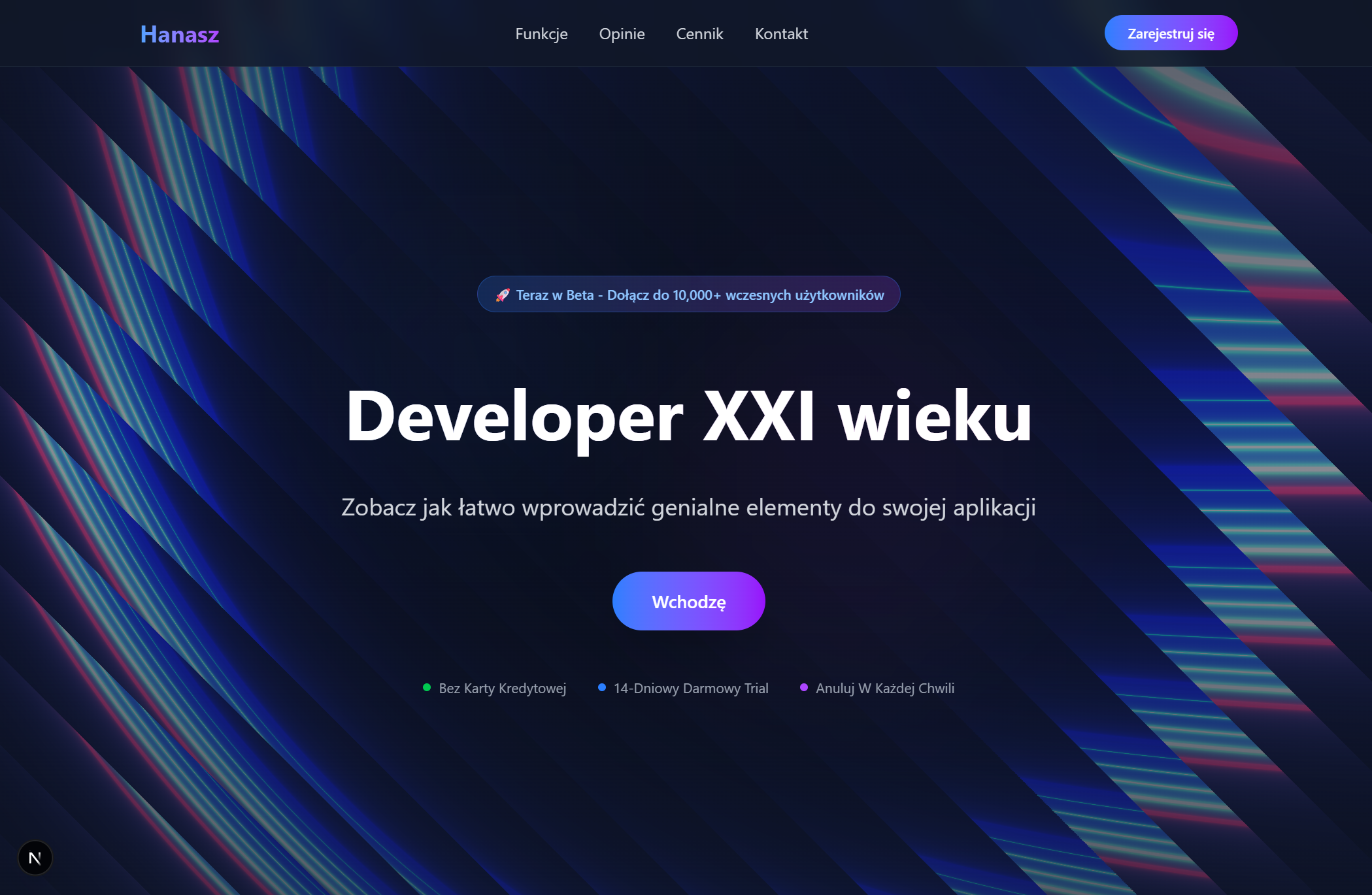
So much better that I think I'll put it on my website 😎
What else can we find on 21dev
Magic chat
Before we add the chosen component to our app, we can also put it into Magic Chat. It lets you adjust the component with AI right in the browser. After reworking it, we can copy the prompt the same way and move to our own environment with the changes already applied.
Unfortunately, when I tested it, it didn't work very well and the result was “broken”. Making changes in Cursor worked much better for me.
Inspiration
On this page we can look up how the elements we're looking for look on other websites. We can choose to search for apps or components. When searching for apps, we can type, for example, “SaaS” and their landing pages will show up.
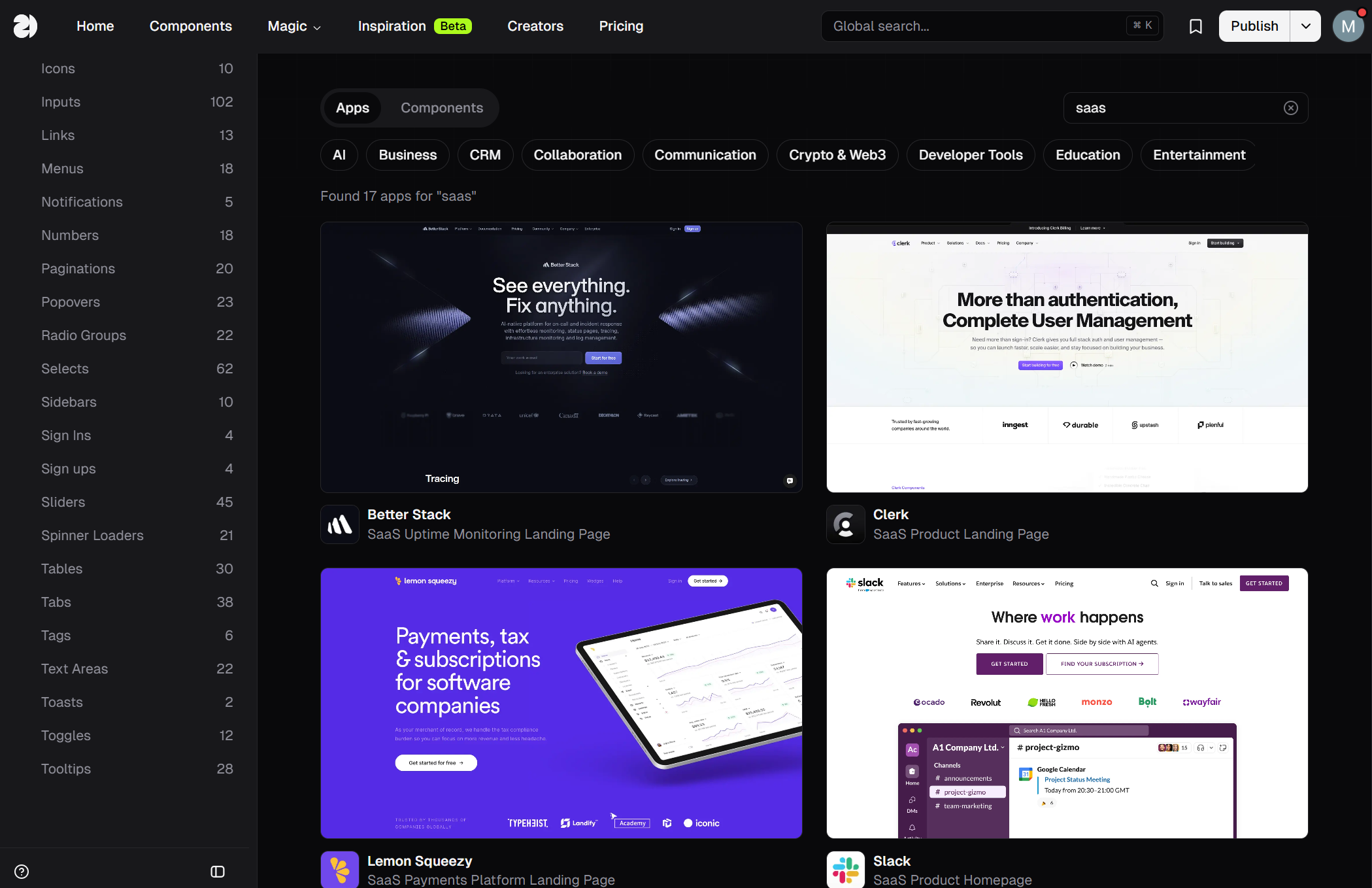
When we pick one of them, we can browse the individual sections of the page.
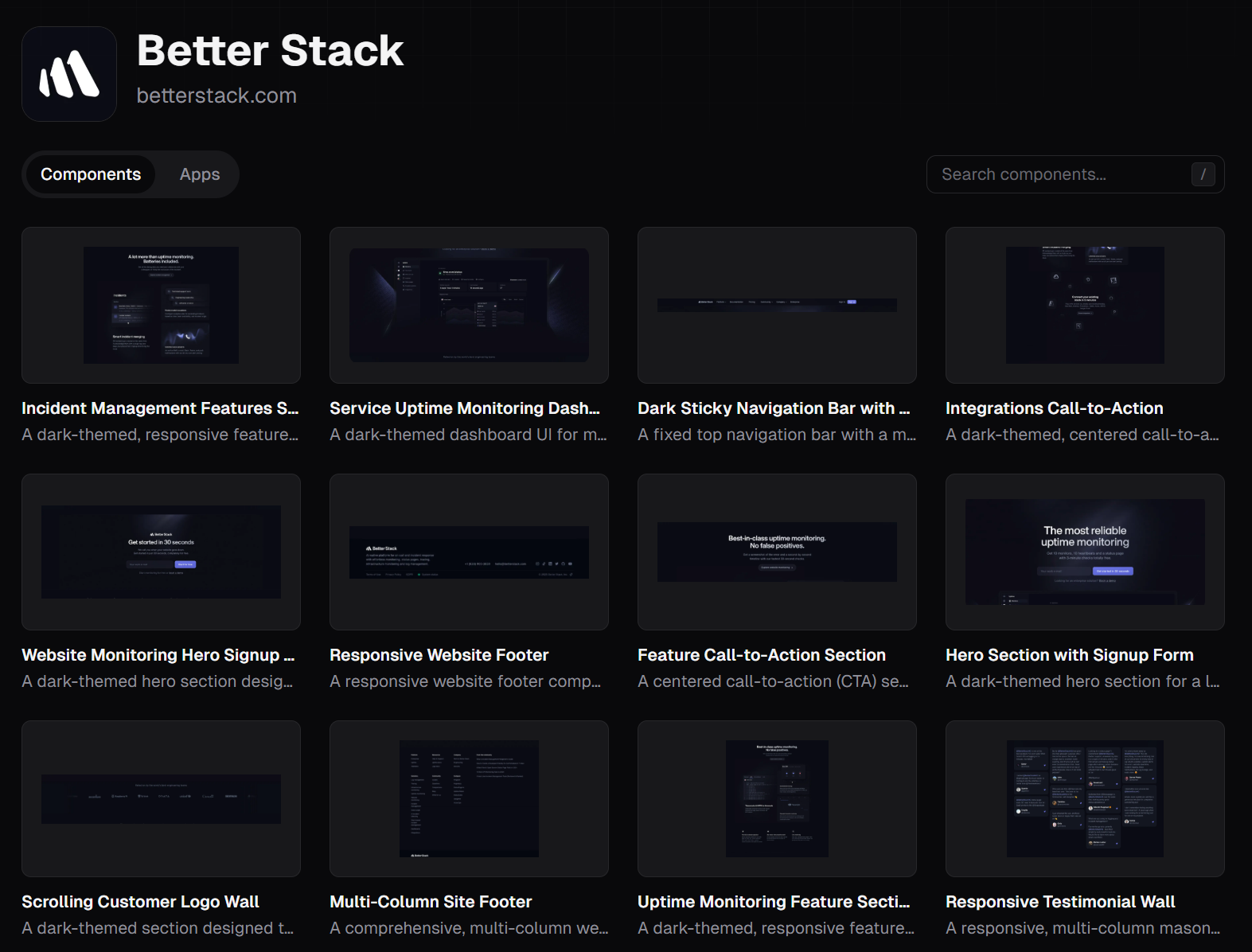
Searching for components works practically the same way, except it looks for those individual parts of websites (apps)
Creators
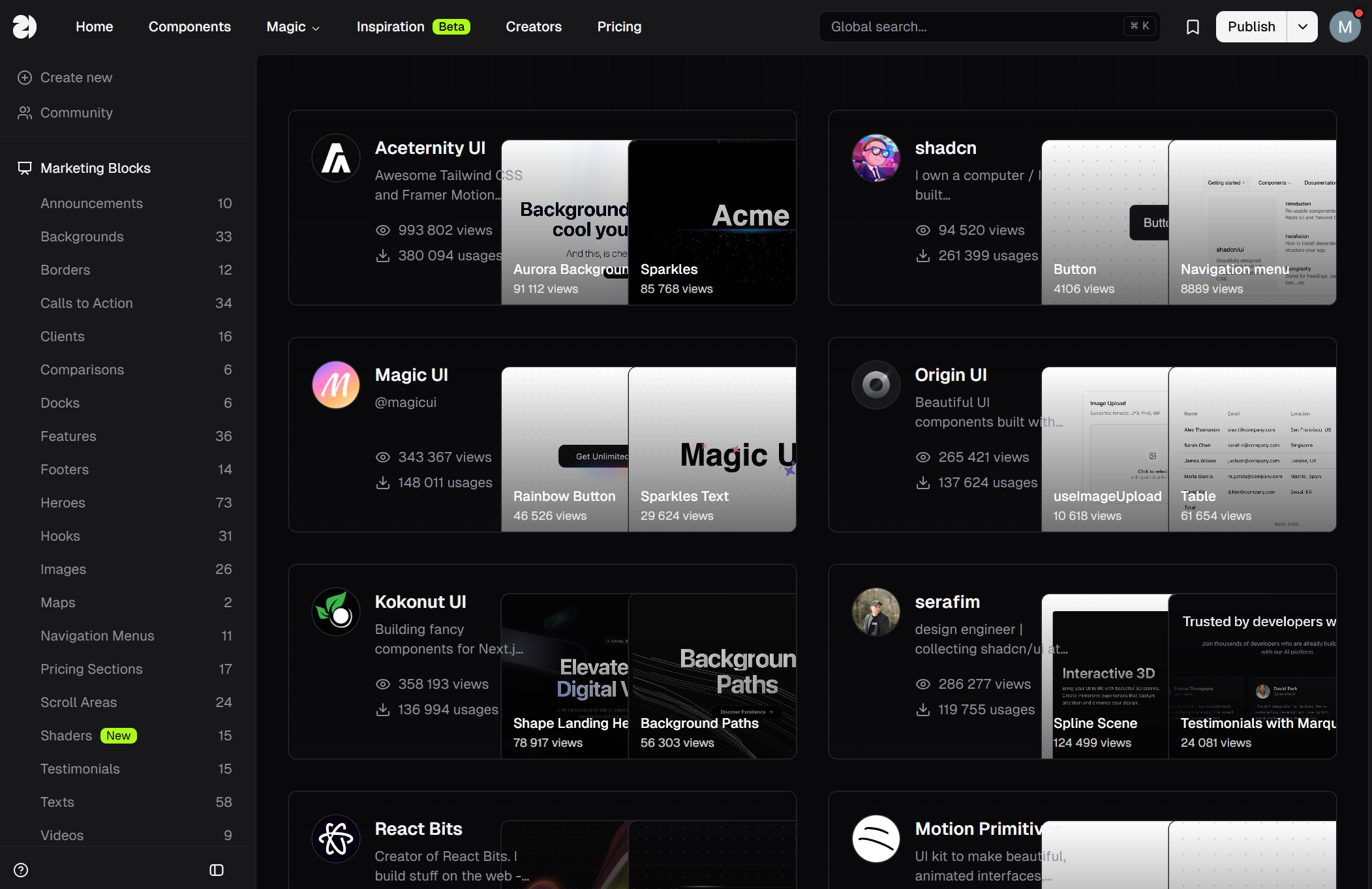
Here we can search for components by their creators. It also lets you filter components by their collections, for example Shadcn or Aceternity UI.
That's it for this website. I hope it comes in handy in your projects. Feel free to follow me or get in touch on LinkedIn and see you in the next posts.